Deploy VCF Operations for Logs
July 20, 2026 | Homelab, VCF, VCF 9, VCF Logs, VCF Operations for Logs, VCF Ops for Logs, VMware, VMware VCF Logs | No Comments
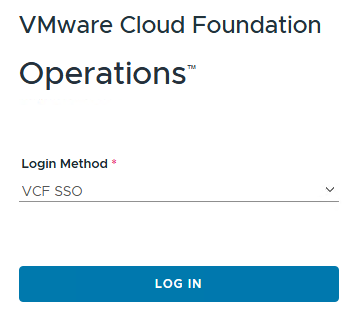
Login to VCF Operations
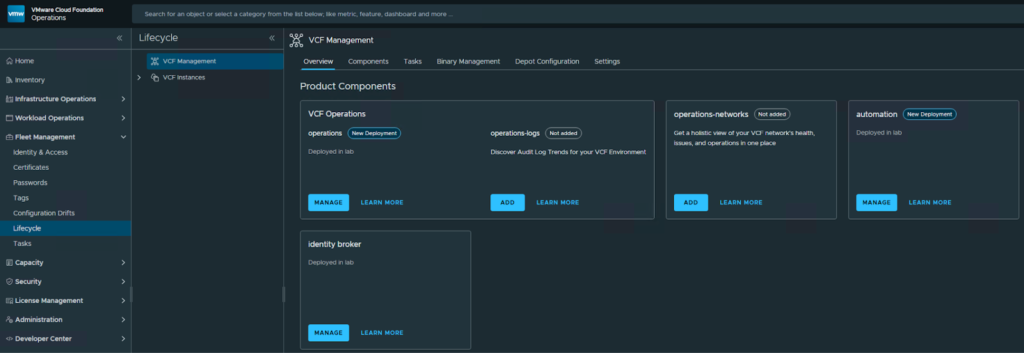
Select Fleet Management on the left, then Lifecycle and click Add for operations-logs
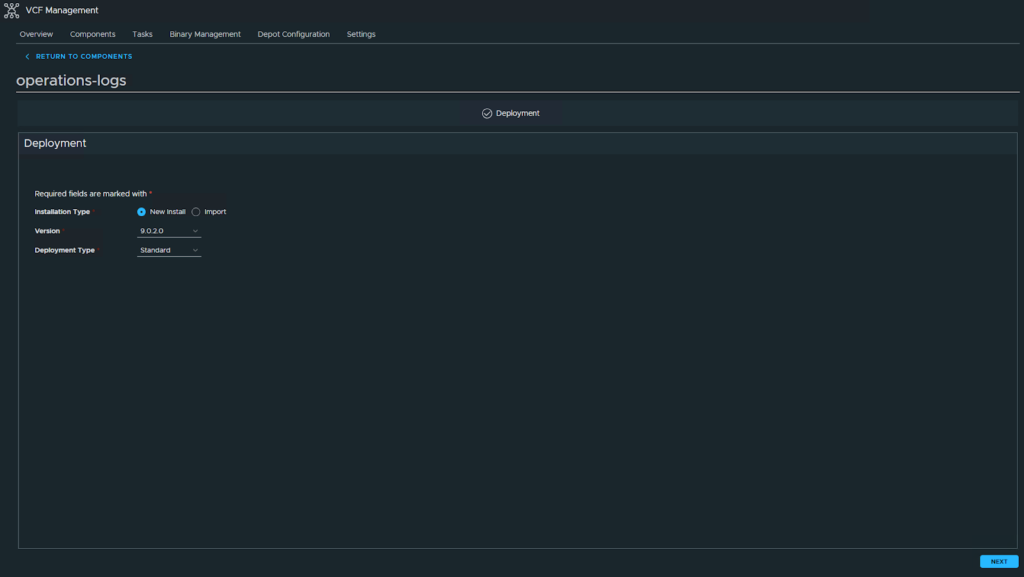
Select your version and deployment type, select Next
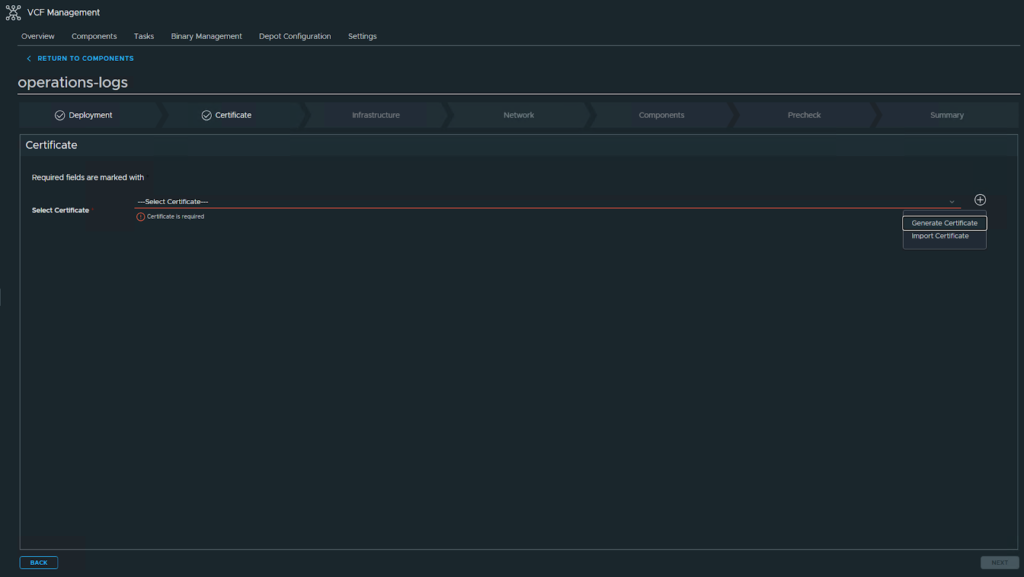
Either generate or import a certificate. I will be importing
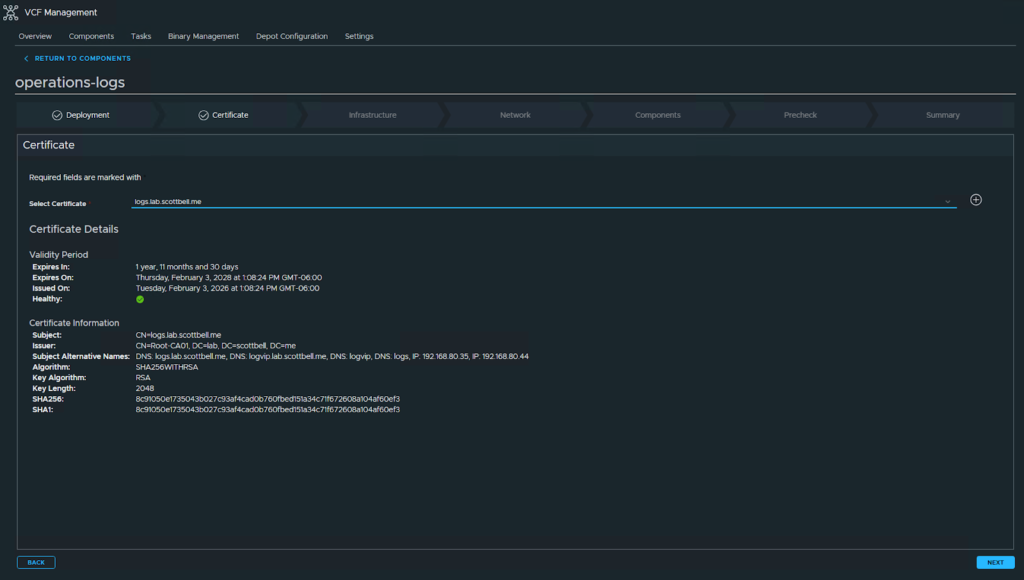
Select your certificate and then Next
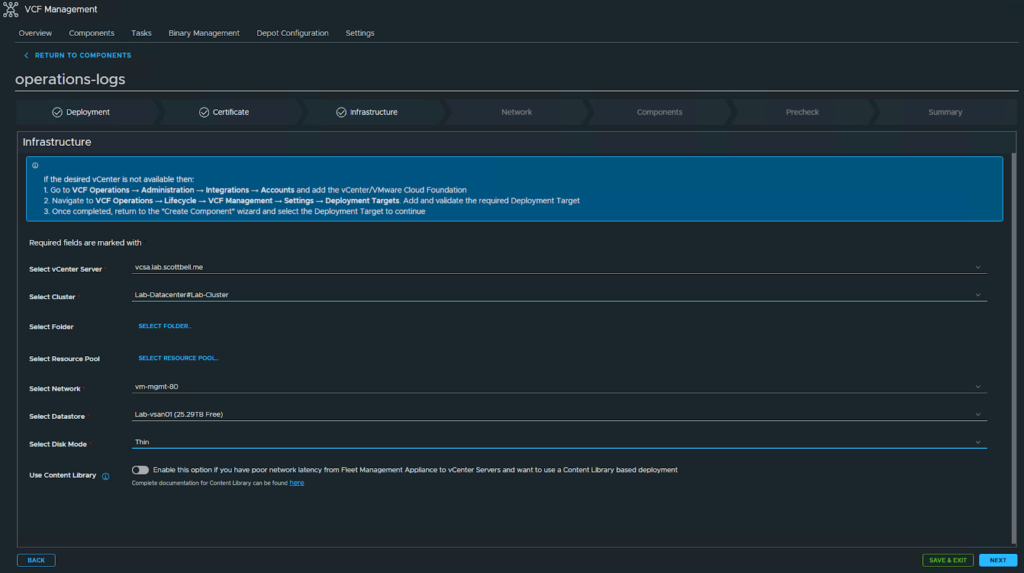
Choose your options from the drop downs and then click Next
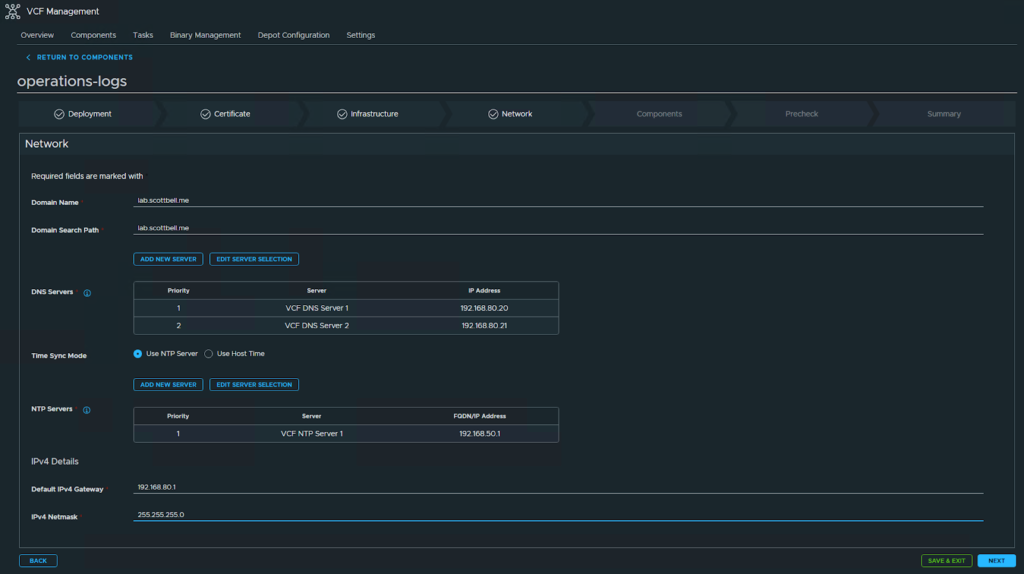
Provide the information and select Next
Select the first portions information such as Node size and if your doing a VIP then scroll down
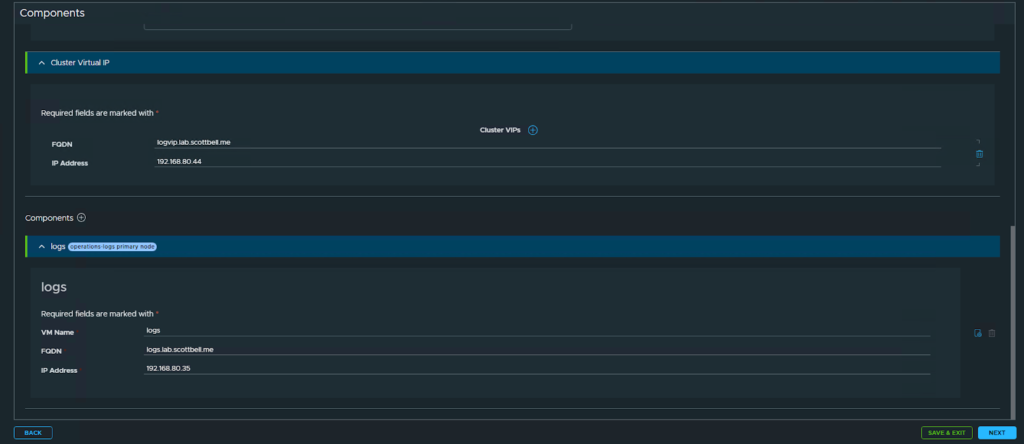
Enter the information for the VIP and the node itself, then select Next
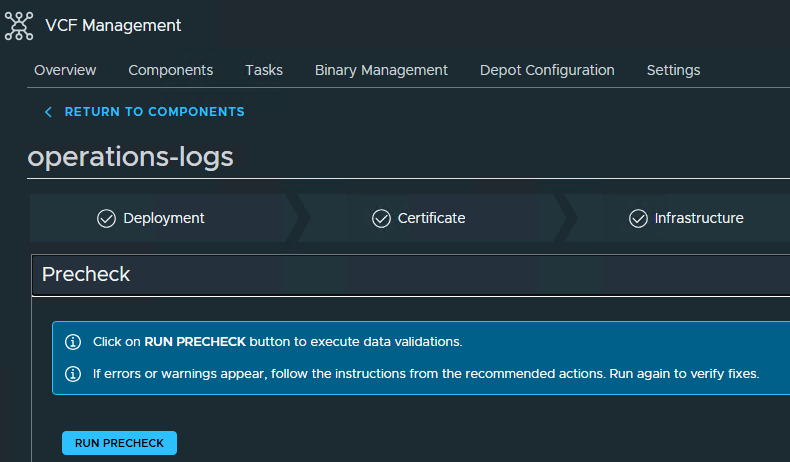
Run the Pre-check

Now that the precheck has passed, click Next

Verify the information and if your ok with it, click Submit

Once completed you will see all 12 stages with a green checkmark

Now go to Fleet Management, then Identity & Access on the left pane, then VCF Other Components. Click Continue

Enter the alias you want to use for the logs SSO link then click Generate OIDC Client

You will get the identity broker, client ID and Client secret information to use in Logs

Navigate to your Operations for Logs webpage and login

Select Configuration and then Authentication on the left

Select the meatballs at the end of the VCF SSO line and click Edit

Enter the Information from the VCF SSO Page to the Ops for Logs VCF SSO page and then test connection
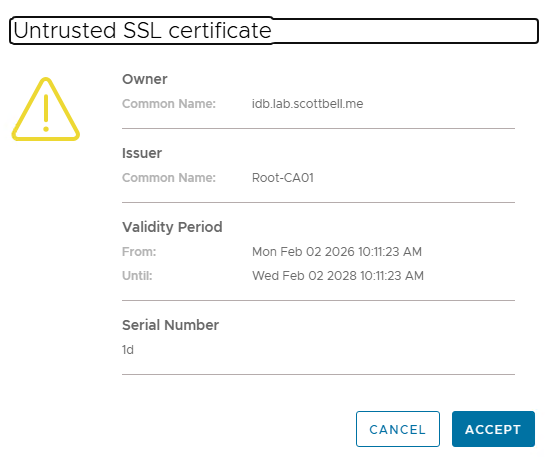
You will get an Untrusted SSL certificate warning. If you trust the system, click Accept

You should get an successful connection result

Click Save in the upper right

Click Users Configurations Page
Select New Group
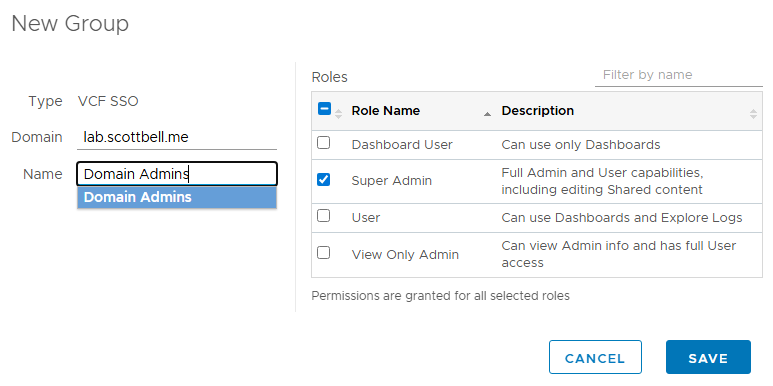
Type in your domain name, then start typing the group name and then on the right select the role for that group. Click Save
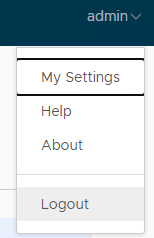
Click the account name in the upper right and select Logout
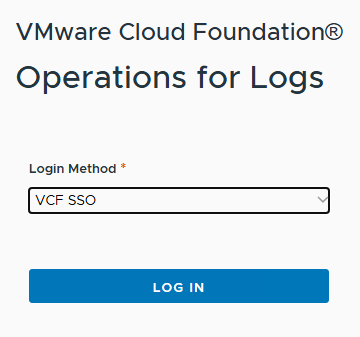
Login using VCF SSO
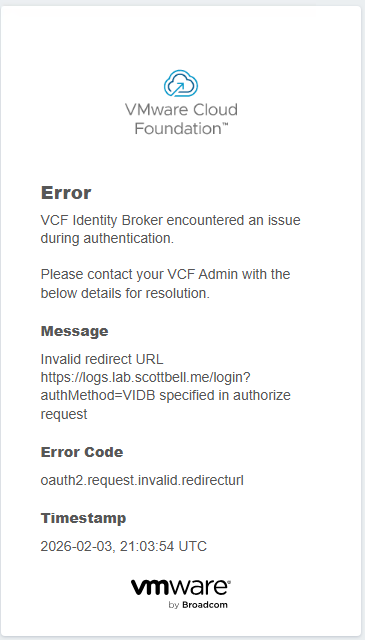
So in logging in, I got an error for the redirect URL

So if you go back to Identity and Access, then VCF Other Components you will see your entry. Select it and click Edit
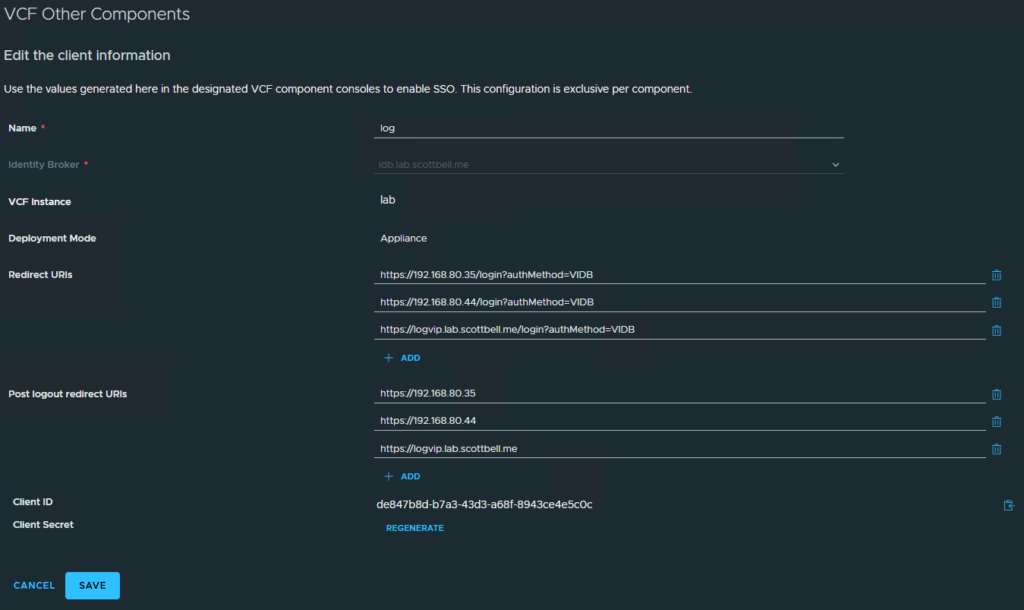
I don’t want the IPs being used for the URLs so I will be changing them to the FQDN
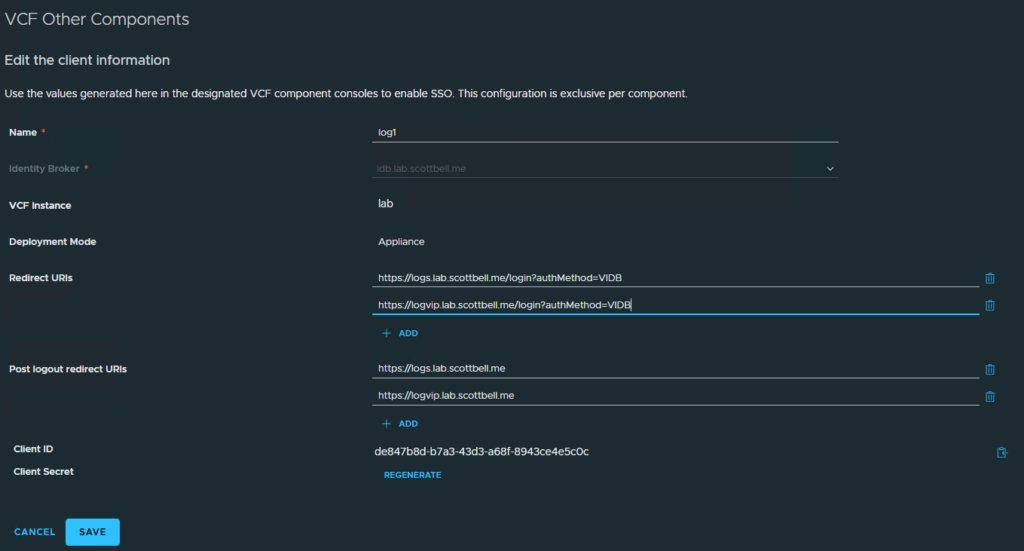
Lets see if these changes will work
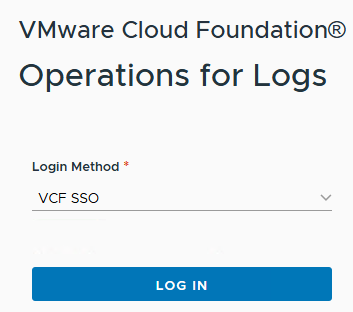
Lets try logging in again

Now login is successful
Congrats and enjoy your new logging solution
Home Lab, Homelab, VCF, VCF Logs, VCF Ops for Logs, VMware, VMware Logging