Setup VCF Installer with Offline Depot
January 19, 2026 | Homelab, Linux, VCF, VMware | No Comments
Greetings, so today we will be linking the VCF Installer with the Offline Depot
Once you have deployed the VCF Installer and deployed and set up the Offline Depot, the next steps will be to setup the VCF Installer to download the binaries from the Offline Depot.
This configuration assumes that you are operating an air gapped environment.
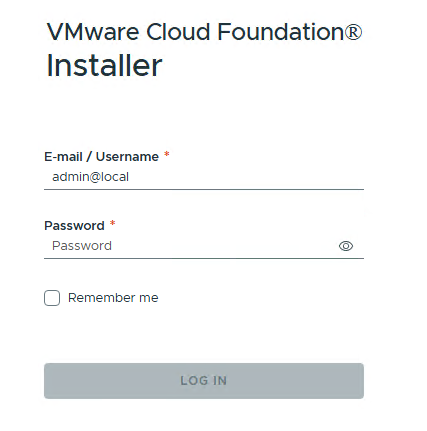
To start, go to the webpage for the VCF Installer and then login
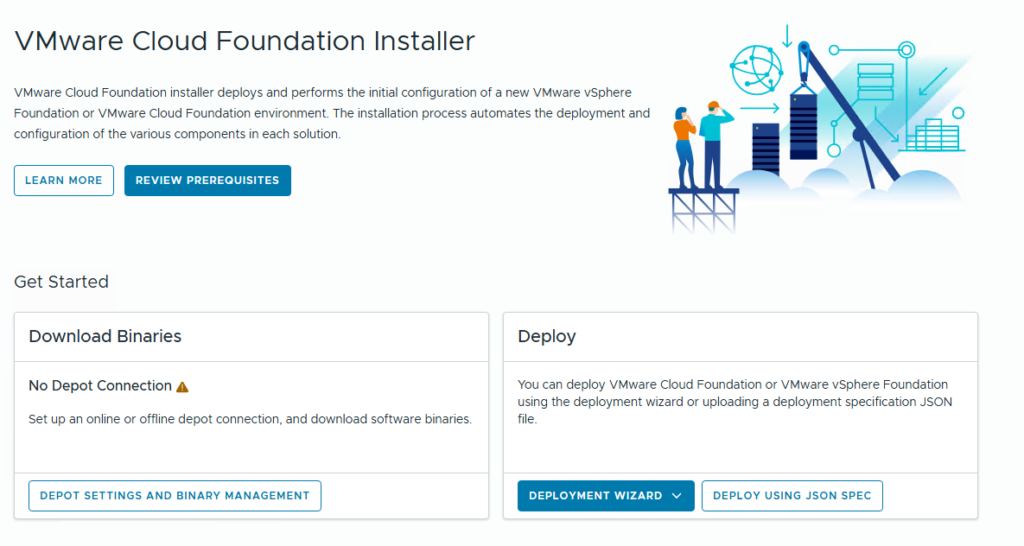
Once logged in, select Depot Settings and Binary Management
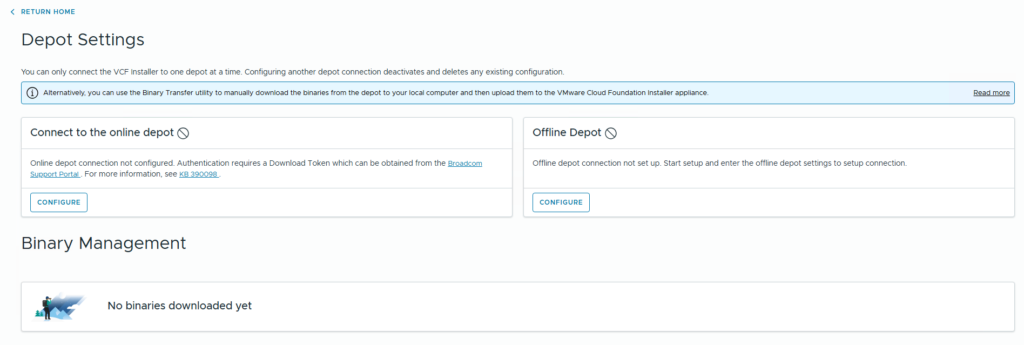
As this is for airgapped environments, select Configure under Connect to the offline depot
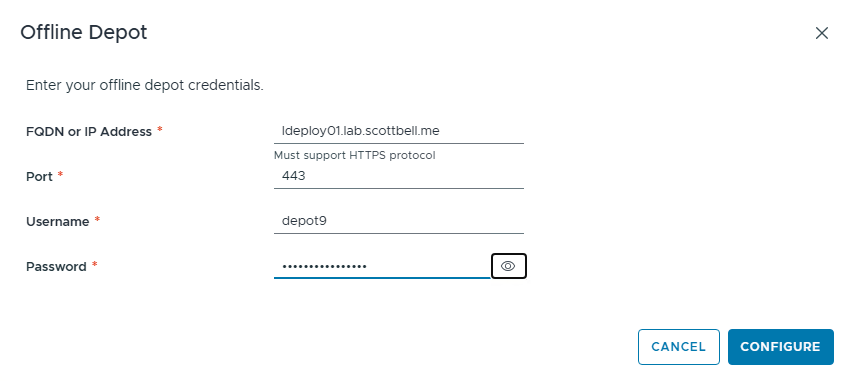
Enter the information for your offline depot and then select configure.
Note: This will likely fail as it does not have the certificate chain from the offline depot.
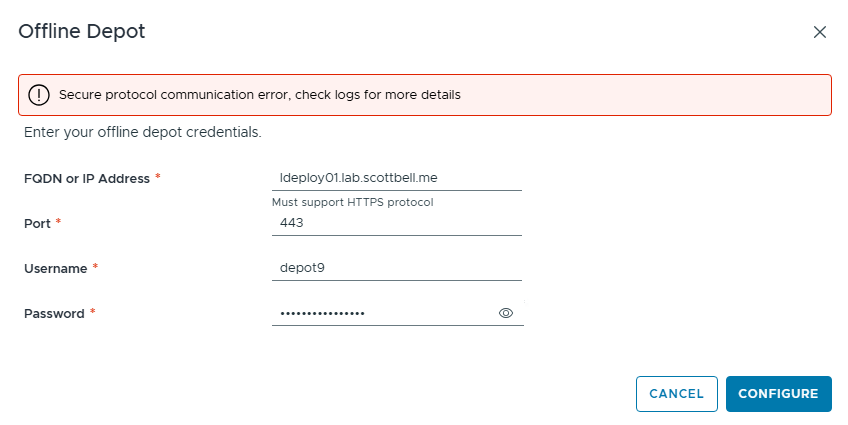
As expected, the connection attempt failed
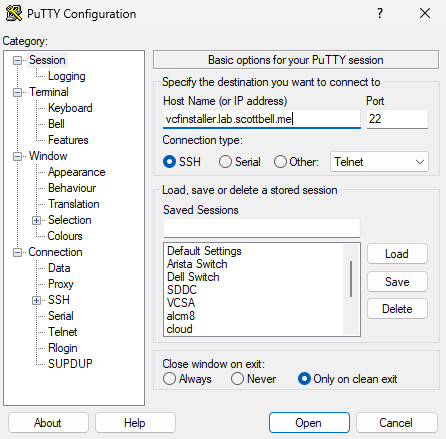
Connect to your VCF Installer using your preferred SSH client.
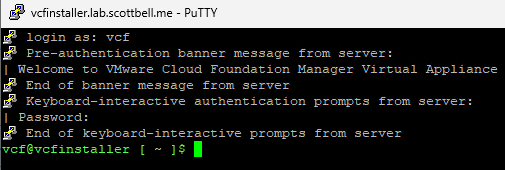
Login using the VCF username
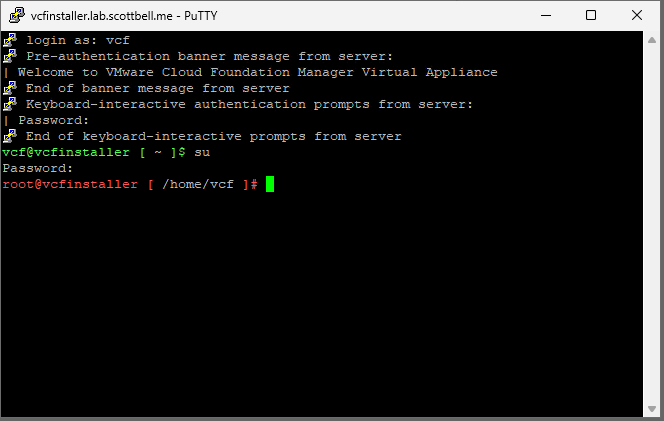
Type in su to switch user to root

Type in the following command to pull the certificate chain from the offline depot.
openssl s_client -connect ldeploy01.lab.scottbell.me:443 -showcerts </dev/null 2>/dev/null | openssl x509 -outform PEM > /tmp/offline-depot.crt

Enter the following command to add the offline depot certificate chain to the java keystore on the VCF Installer
keytool -import -trustcacerts -file /tmp/offline-depot.crt -keystore /usr/lib/jvm/openjdk-java17-headless.x86_64/lib/security/cacerts -alias <offline-depot-fqdn>

Enter the following password for the keystore
changeit

You will get asked to Trust this certificate. Type in Yes. It will then report the cert having been added to the keystore.

Type the following command to restart services on the VCF Installer
/opt/vmware/vcf/operationsmanager/scripts/cli/sddcmanager_restart_services.sh

Confirm that you do want to restart services and hit y
This reboot of services will take a few minutes
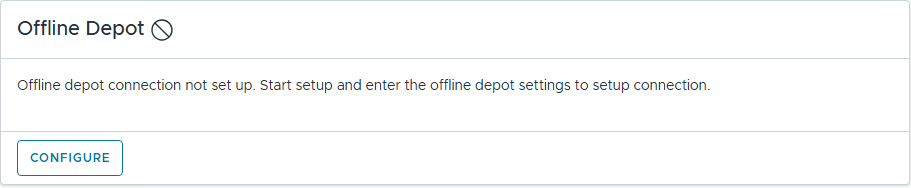
Go back to the VCF installer page and refresh the page, then select Configure Offline Depot
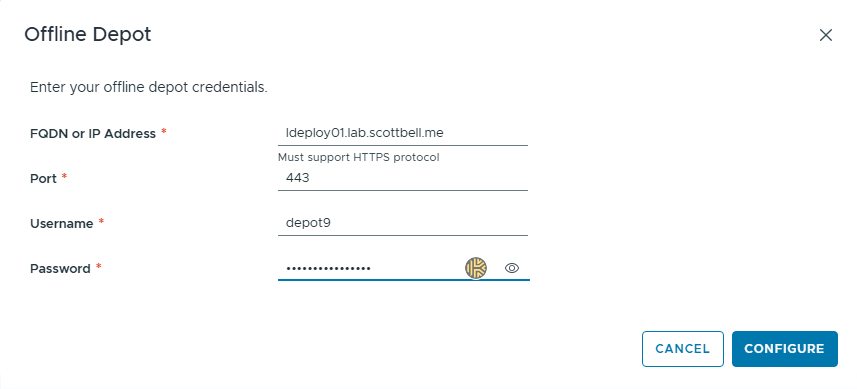
Enter your configuration information and select Configure
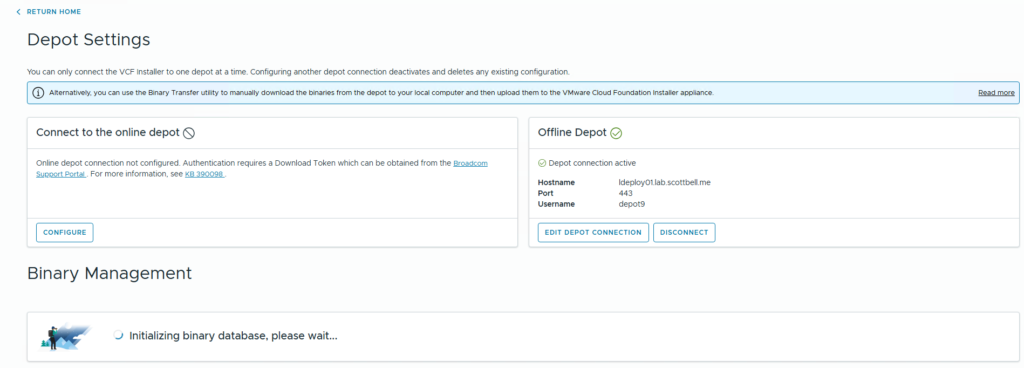
Once it accepts the configuration you should see the above as it ingests the information for what’s available to download.
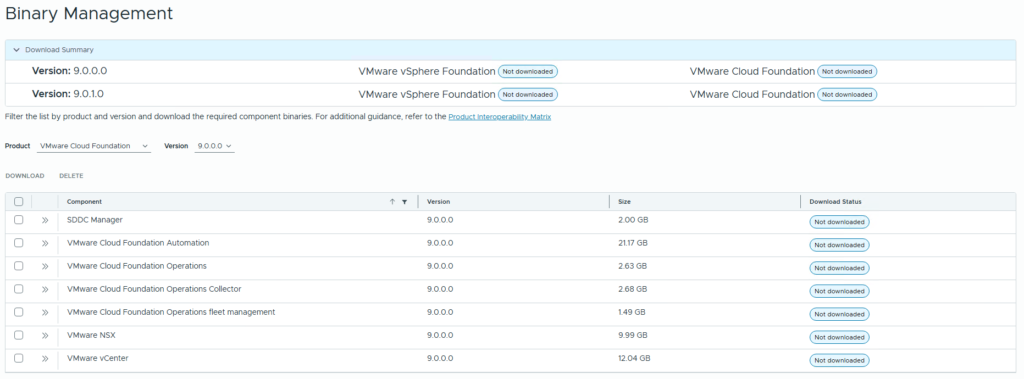
Once it has finished ingesting the catalog, you will see the above. Use the drop downs to select VCF/VVF or 9.0.0.0/9.0.1.0.
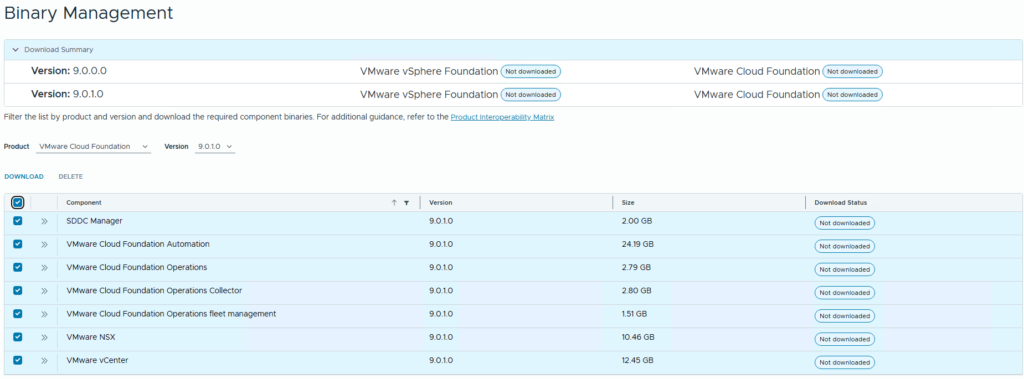
Check the boxes next to the products you want to download for install, for VCF you want all of them. Select Download
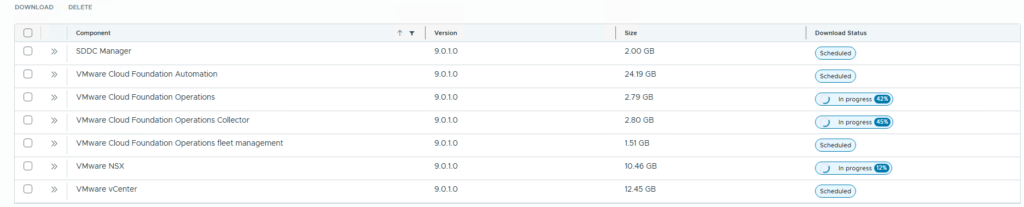
You will get periodic progress updates under the Download Status column
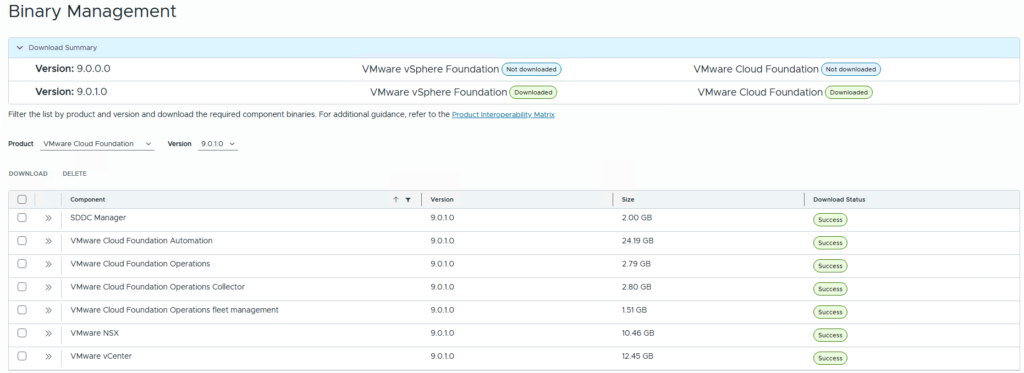
Once all downloads are completed this is what you should see
Troubleshooting
Forbidden Error
In this case, the configuration attempt errore
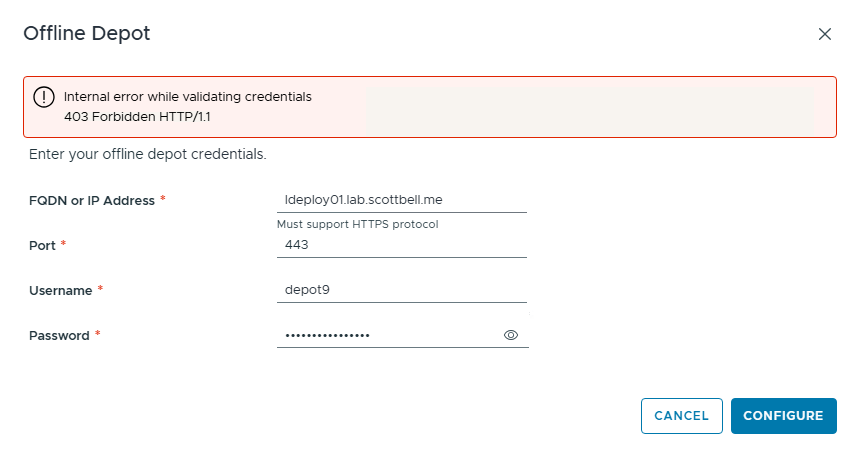
In this case the configuration attempt errored out with the above. This was due to file ownership not being correct on the offline depot.

Use the following command to check permissions along the file patch to find where the ownership was incorrect. All files and folders under /var in this case from /www and on, should be owned by apache
namei -l /var/www/html/PROD/metadata/productVersionCatalog/v1/productVersionCatalog.json

Have a good one.
Home Lab, Homelab, VCF, VMware