Enable VCF Automation
September 28, 2026 | Homelab, NSX, NSX Edge Nodes, VCF, VCF 9, VCFA 9, VMware, VMware Automation 9 | No Comments
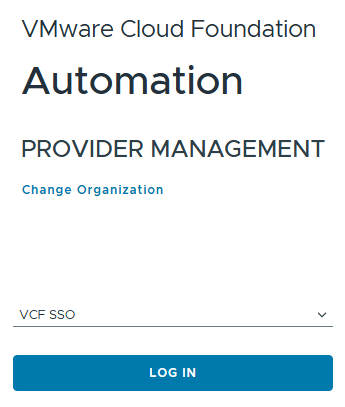
Login to VCF Automation
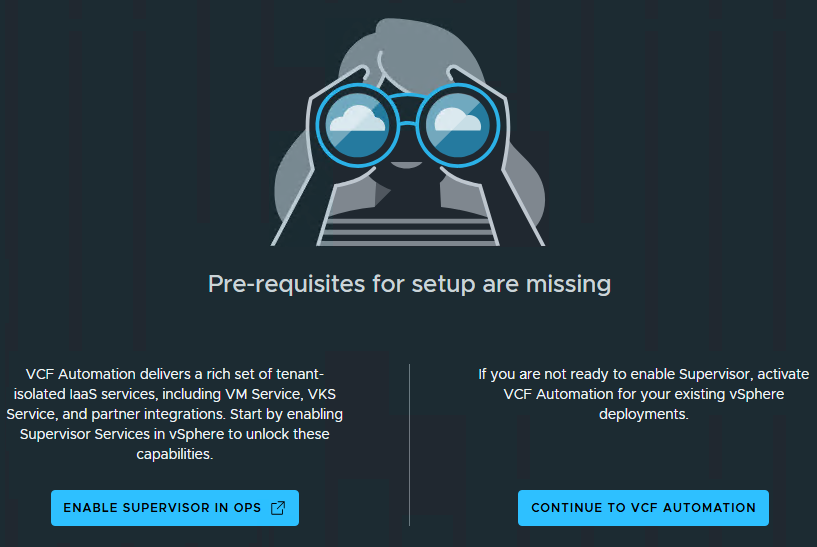
When you login you will get this page to setup Supervisor for the modern tenancy-based capabilities in VCF Automation
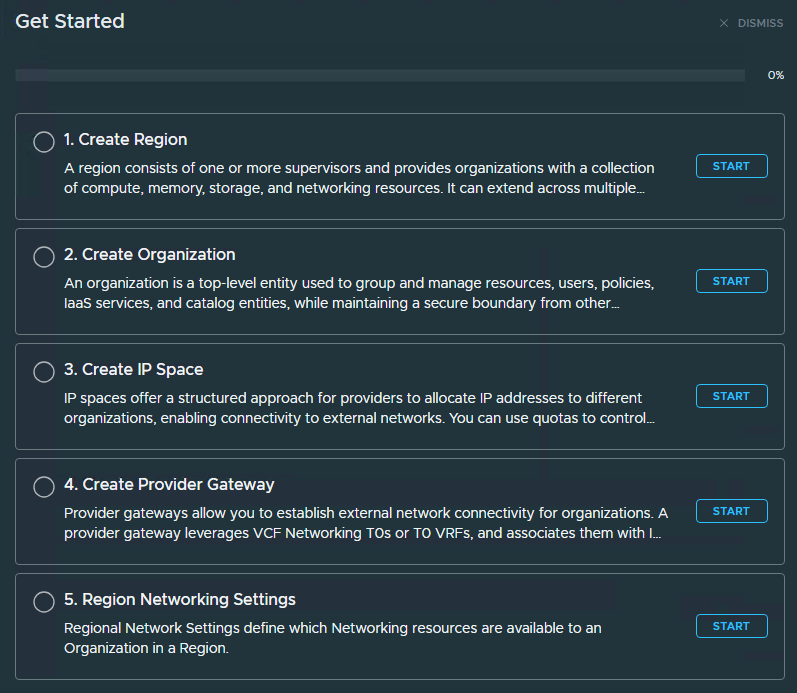
This is a list of the steps that need to be completed to have a fully enabled Automation platform
Enable vSphere Supervisor
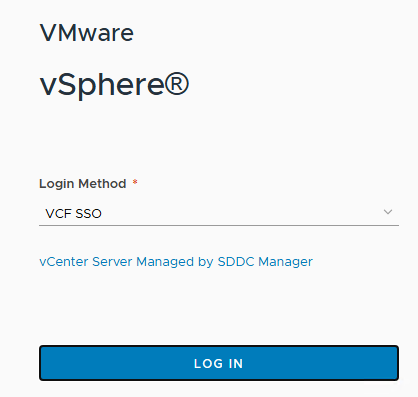
Login to vSphere
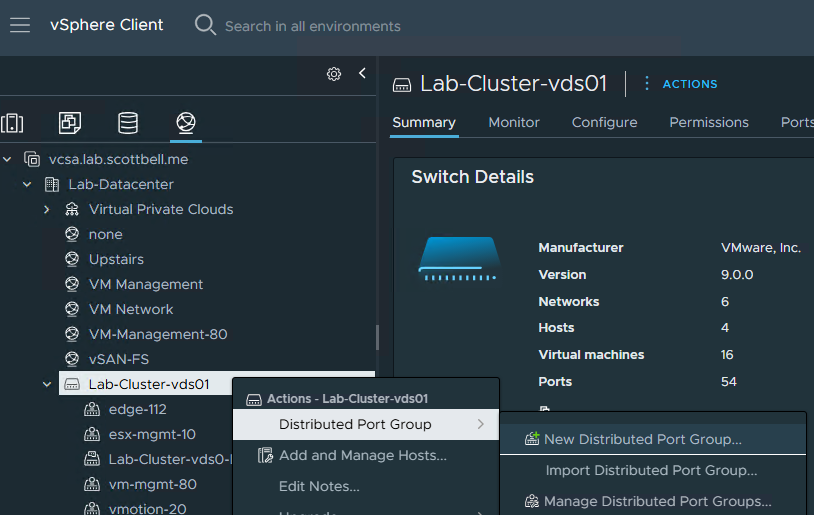
Select Networking (the globe) then right-click your VDS, select Distributed Port Group then click on New Distributed Port Group
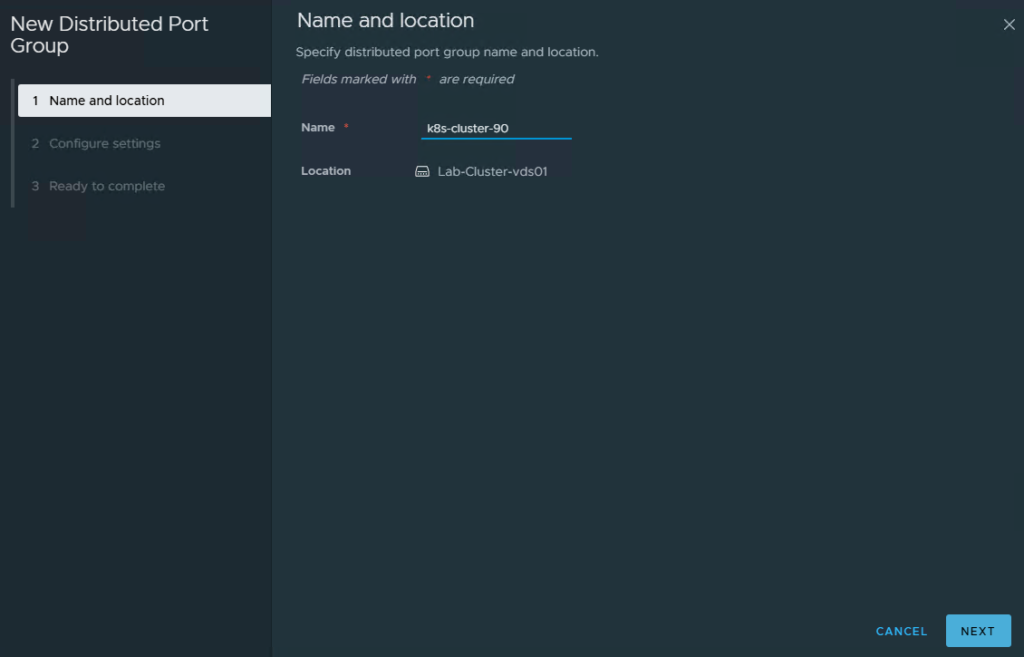
Name your Port Group then click Next
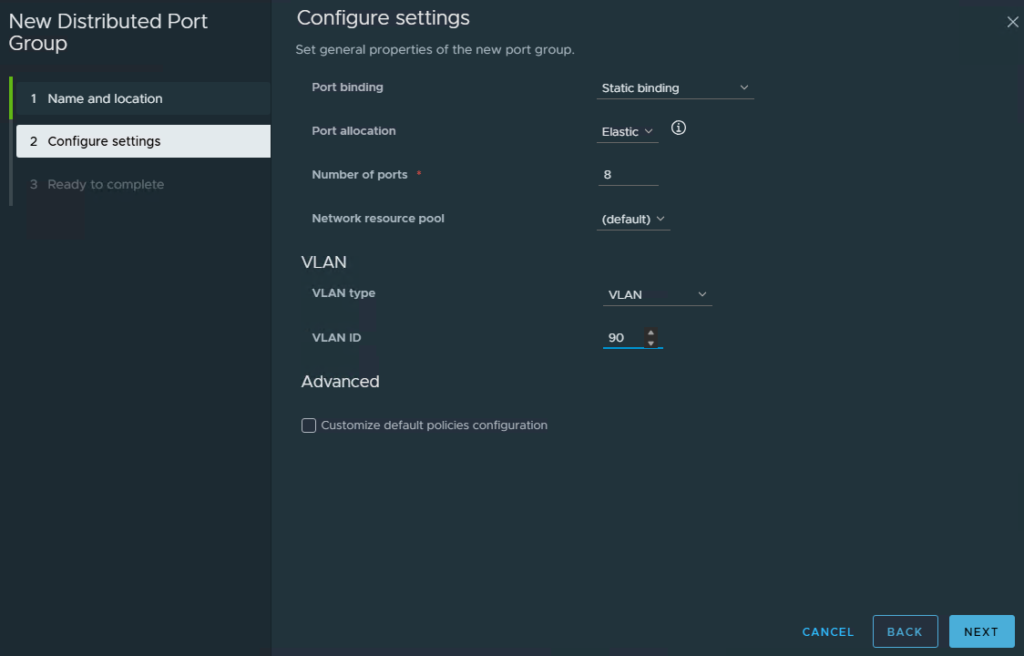
I changed only the VLAN type and set it to 90, the rest is defaults. Click Next
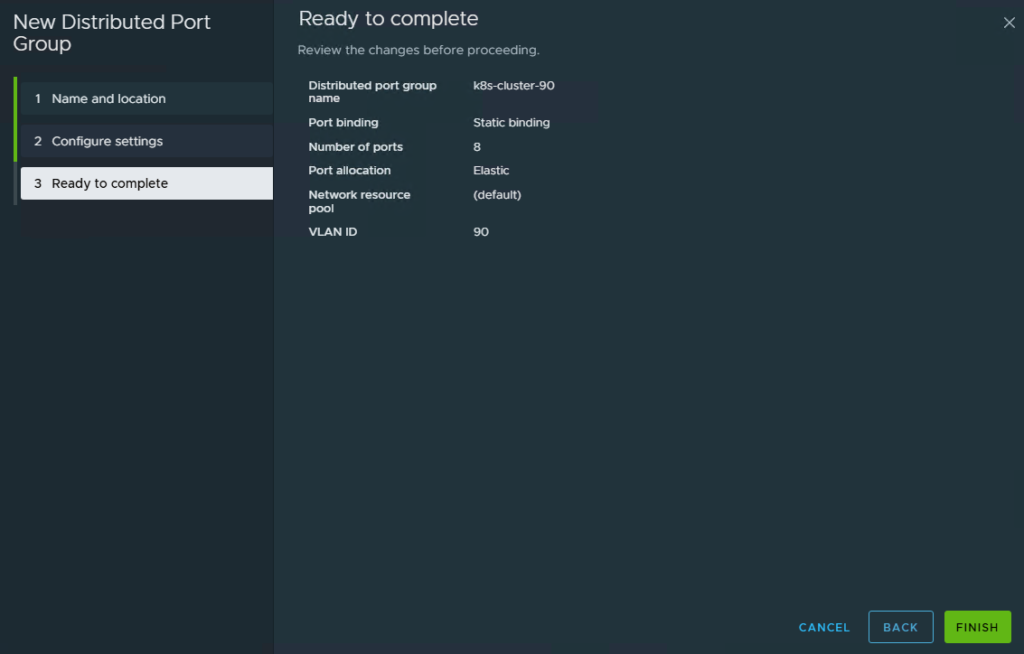
Verify your settings and click Finish
I did this again with my VLAN 100 which is also reserved for k8s
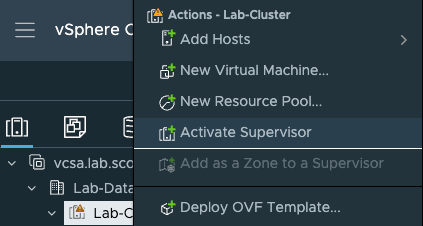
Right click your cluster and select Activate Supervisor
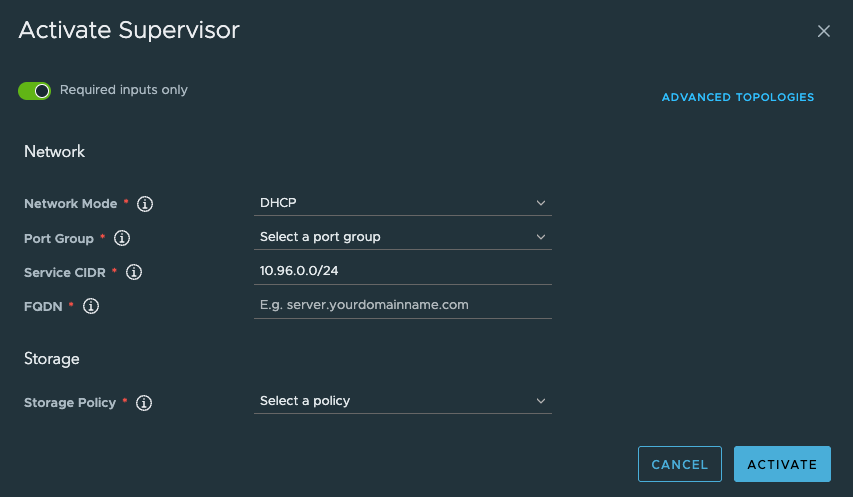
Select Advanced Topologies in the upper right of the window
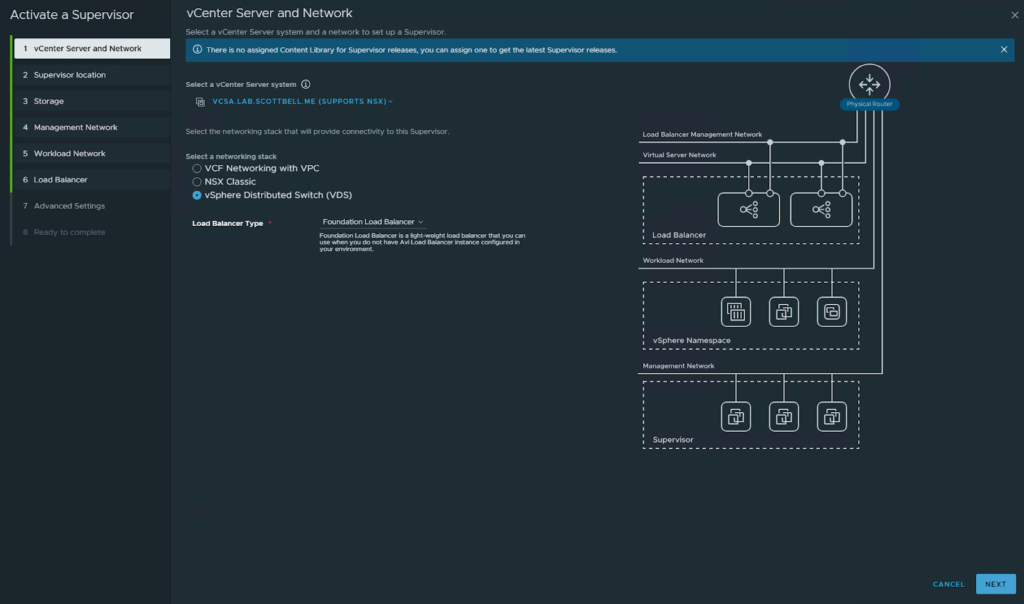
We will be doing the vSphere Distributed Switch (VDS) with the Foundation Load Balancer
I intend to do an AVI Load Balancer version later, but not quite yet
Click Next
Enter a name for the supervisor, choose the Datacenter and cluster to use. Click Next
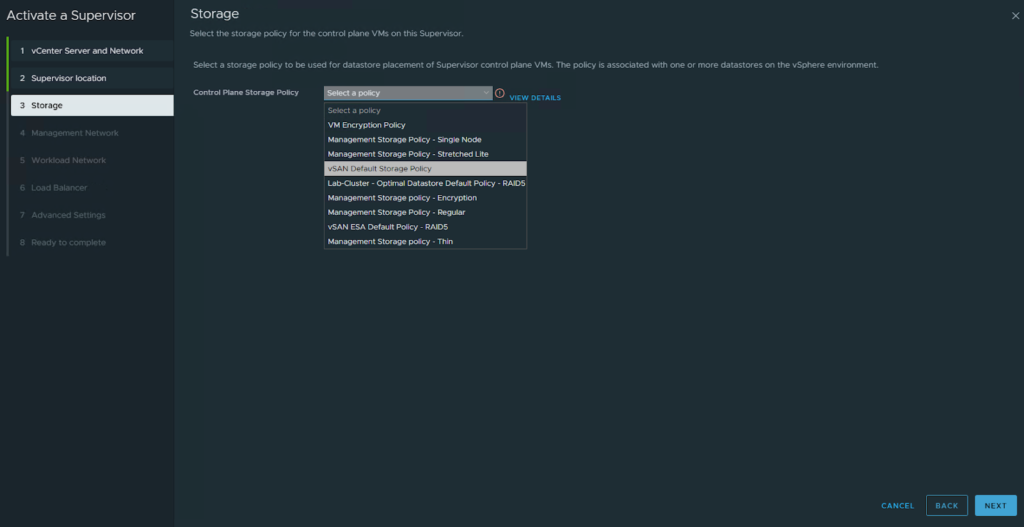
Choose the Control Plane Storage Policy you wish to use, I will be using the vSAN Default Storage Policy. Click Next
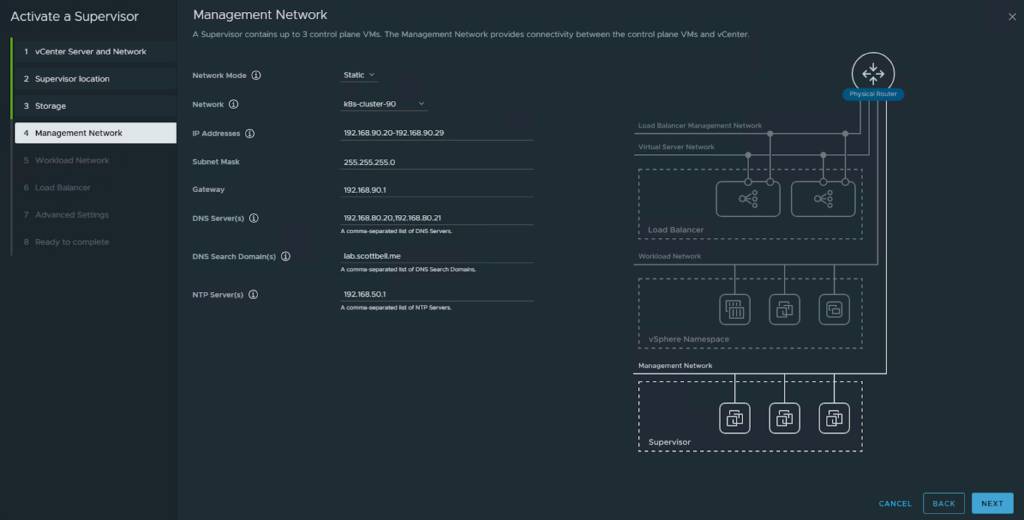
Enter your networking information and click Next
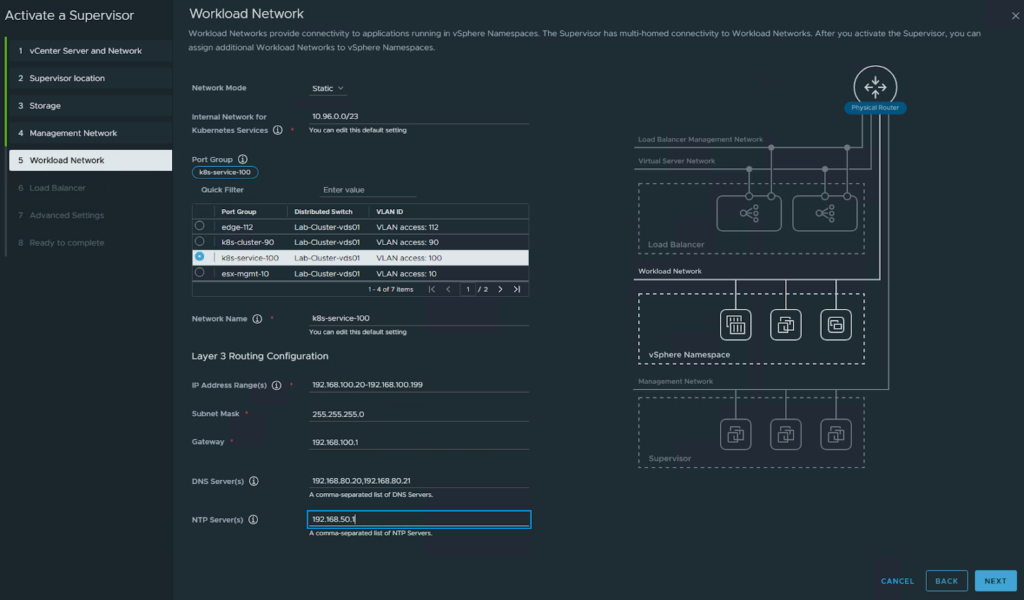
Enter the networking information for the Workload Networking and click Next
Choose the sizing and VIP information for the Load Balancer
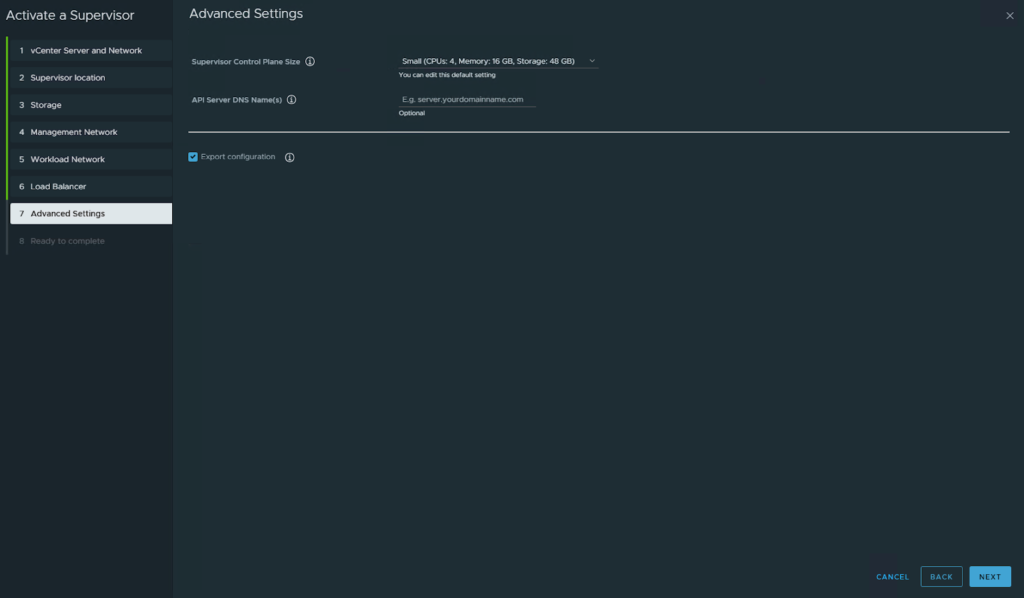
I am not going to add a DNS name for the API Server as its optional. I will Export the configuration though. Click Next
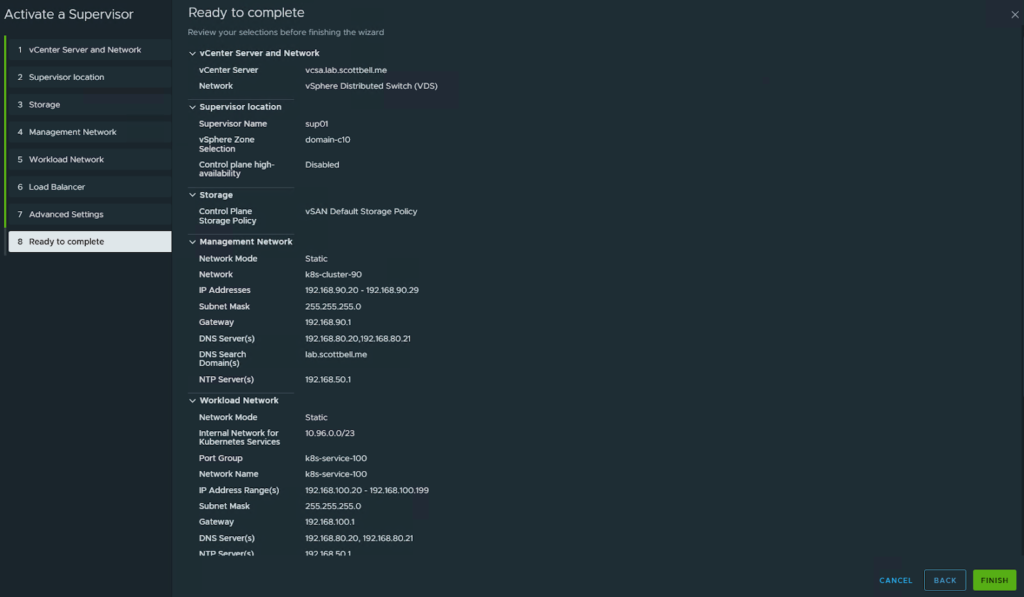
Review the configuration to make sure its correct and then click Finish

Once it starts deploying you will see this view
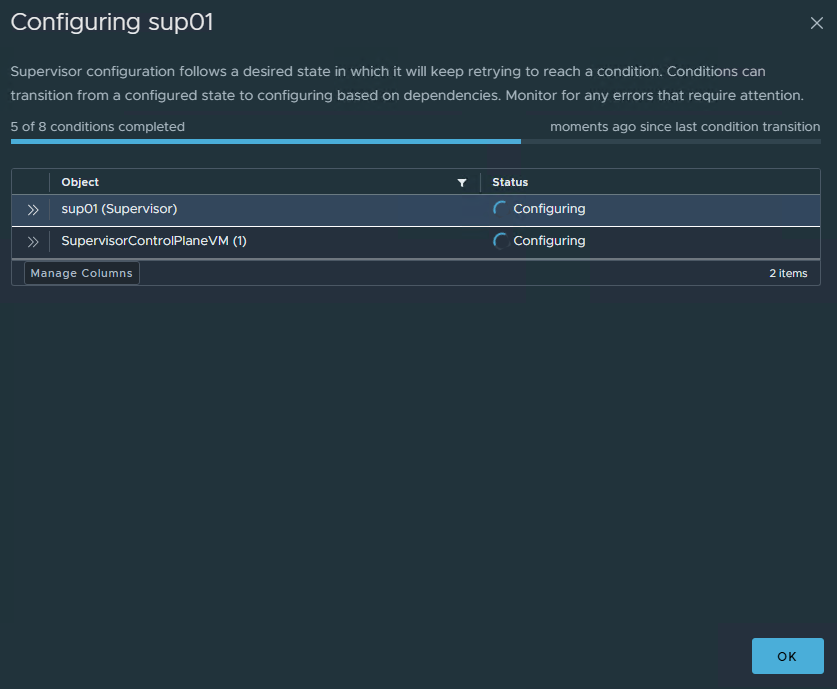
If you click on the (View) option you will get this view for more detail of progress
Configure Automation
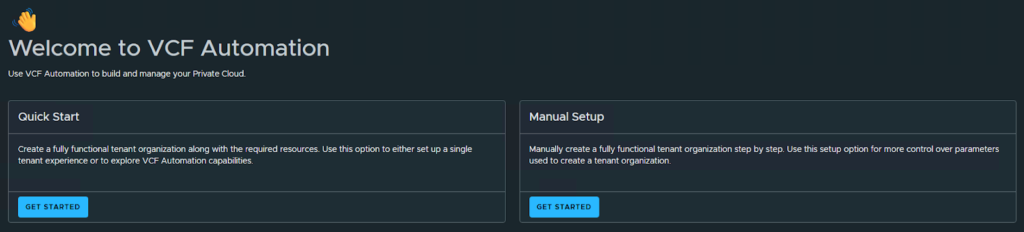
When you login to VCF Automation after having set up Supervisor in vSphere you should see this screen. I will be choosing Manual Setup
So we will start here where we have 5 steps to complete to be fully setup for Automation. Click Start for Create Region.
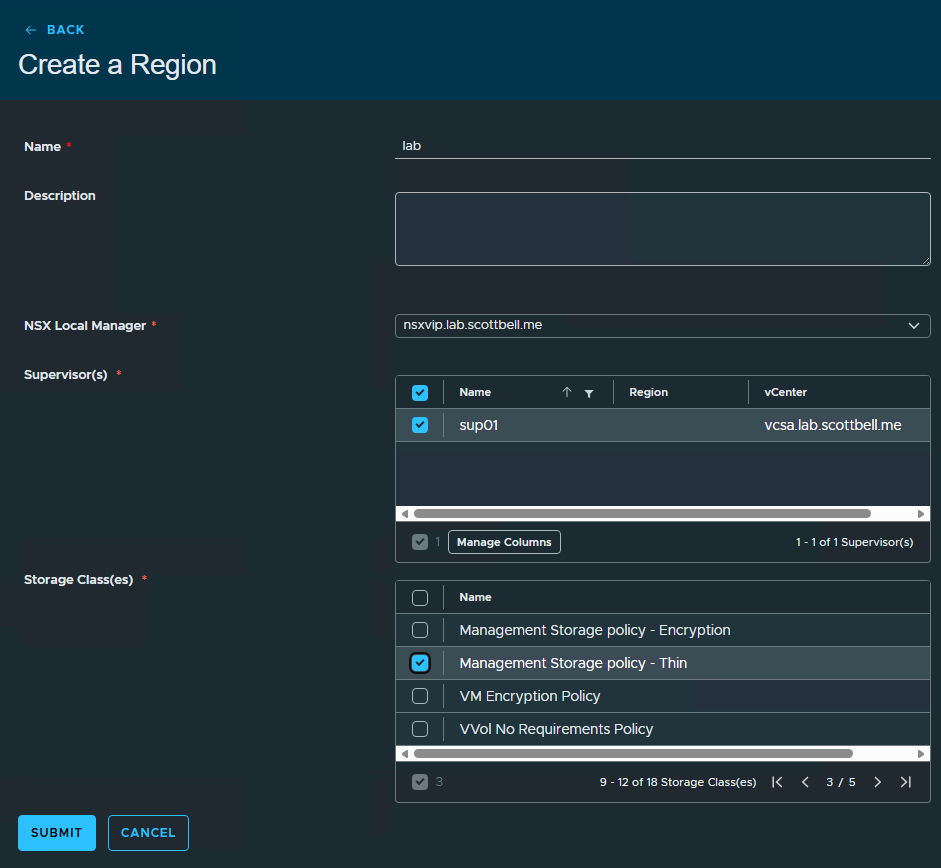
Choose your name for the Region (must be lowercase), the NSX Manager, Supervisor, and Storage Classes and click Submit
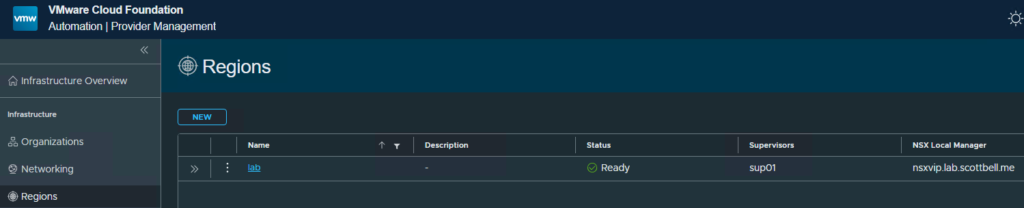
Once complete you should see a status of Ready. Click Infrastructure Overview in the upper left
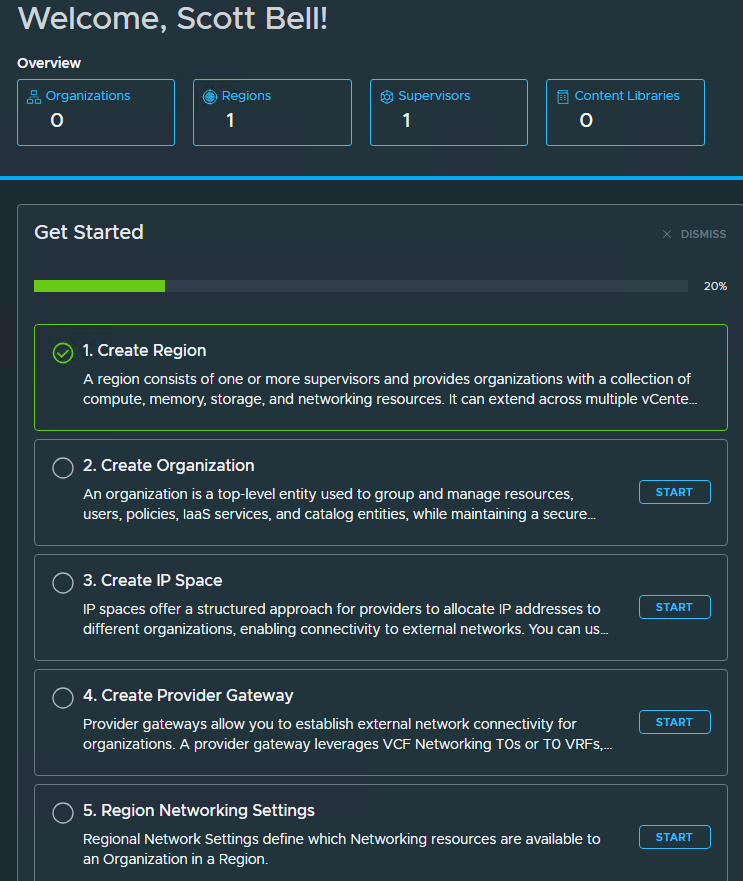
Next Click Start for Create Organization
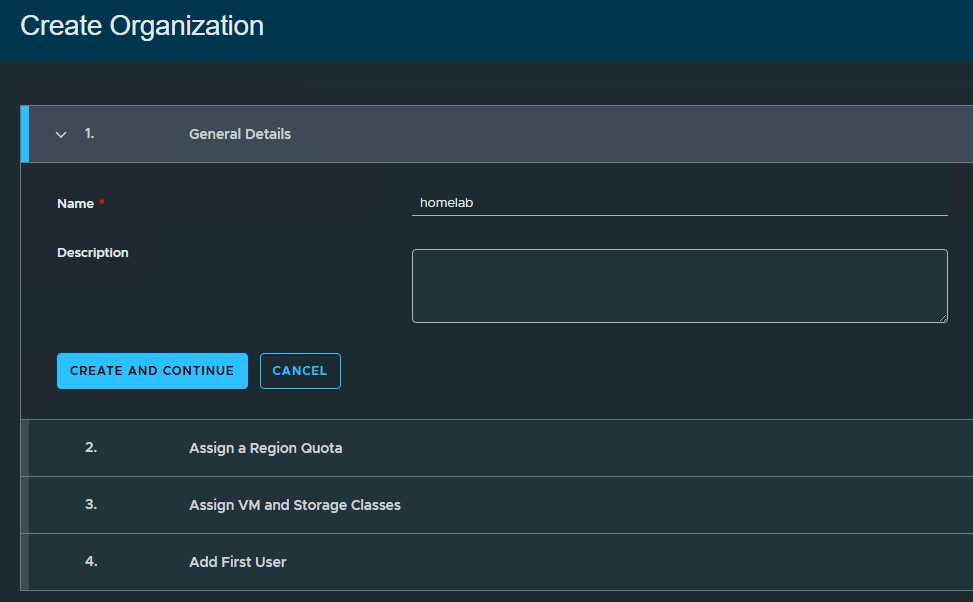
Add a Name for the Organization, this must be lowercase, and then select Create and Continue
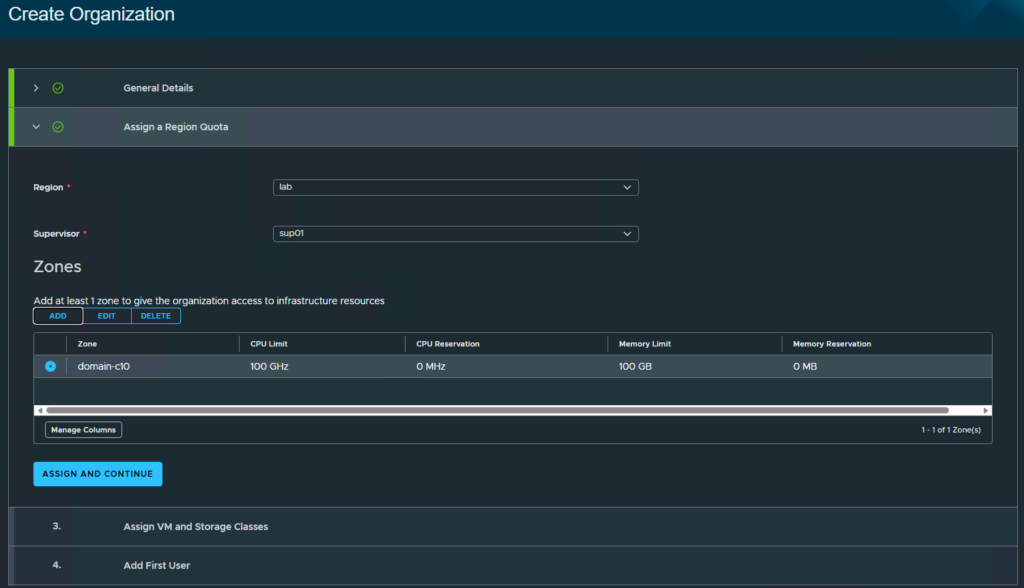
Select the Region and Supervisor, then under Zones, click Add
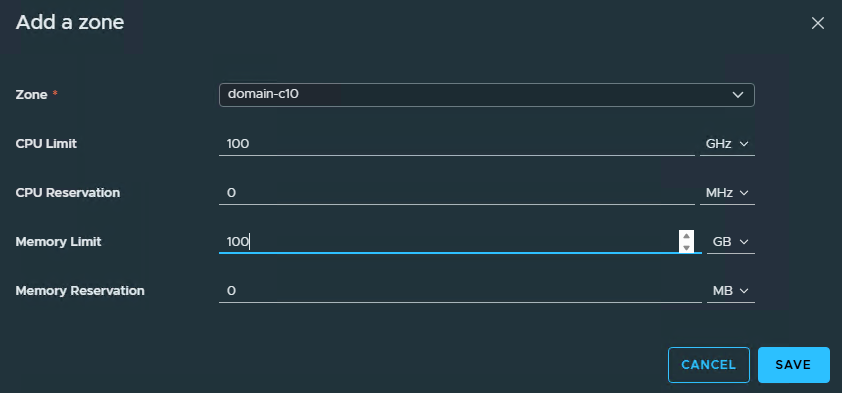
Choose the Zone (Cluster), and enter resource limits and reservations appropriate for your environment. I have chosen nice round numbers. Click Save
Click Assign and Continue
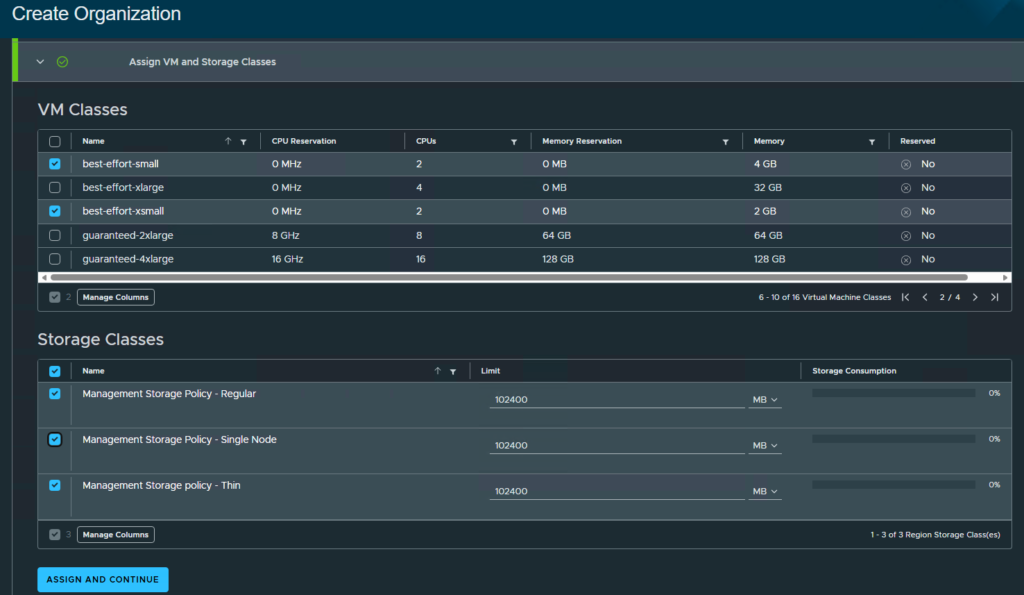
Select your VM and Storage Classes, then click Assign and Continue
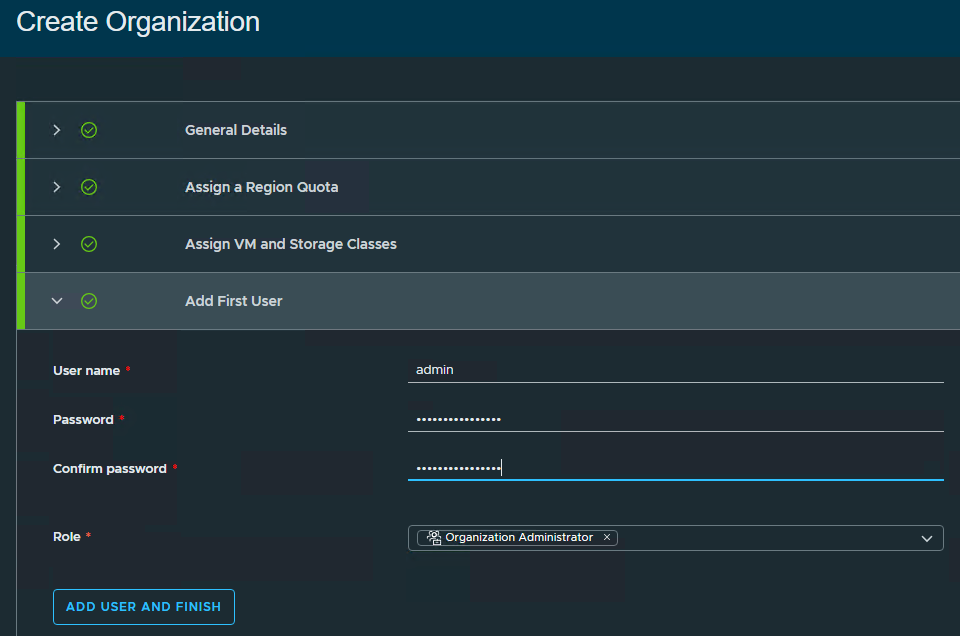
Enter your username, password and select the role. Click Add User and Finish
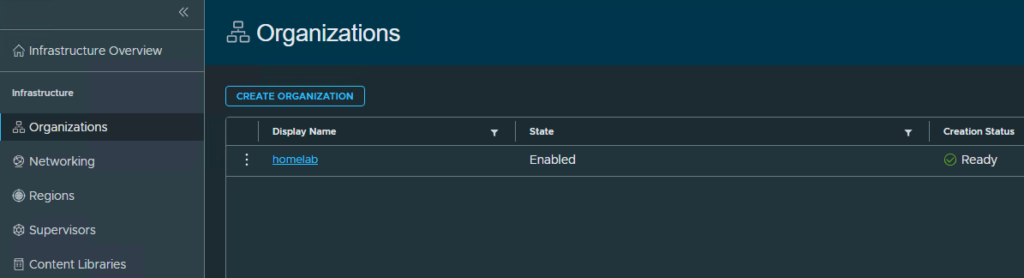
You should see a Creation Status of Ready when completed. Click Infrastructure Overview in the upper left
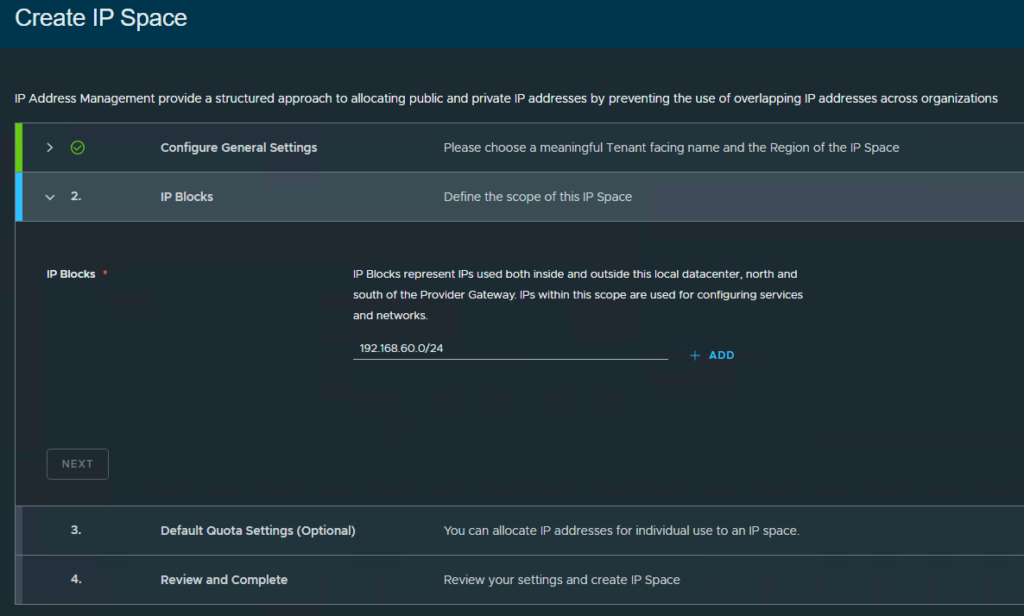
Select Start for Create IP Space
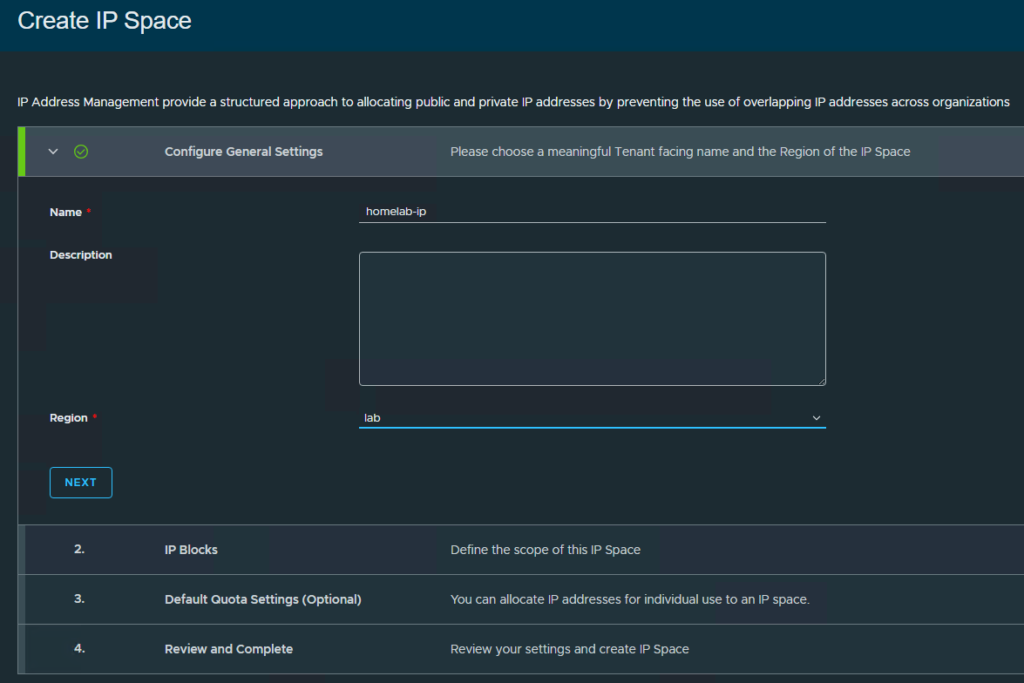
Enter a name for the IP Space (that is lowercase) and select the Region. Click Next
Enter the IP range(s) you will be using and click Add and then Next
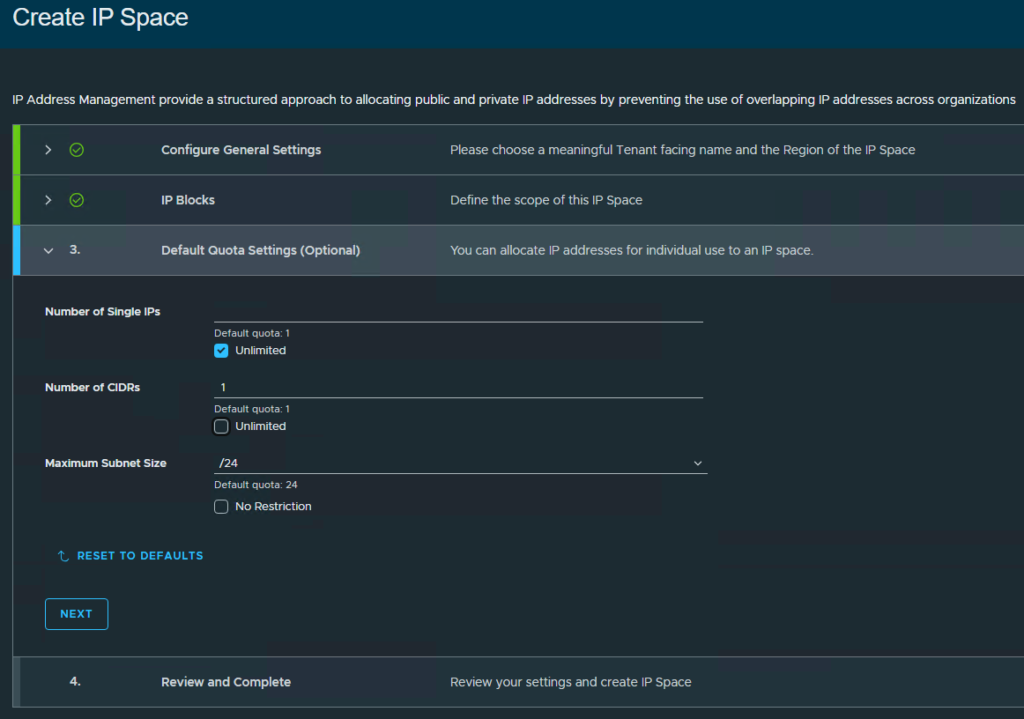
Select your Quota choices and click Next
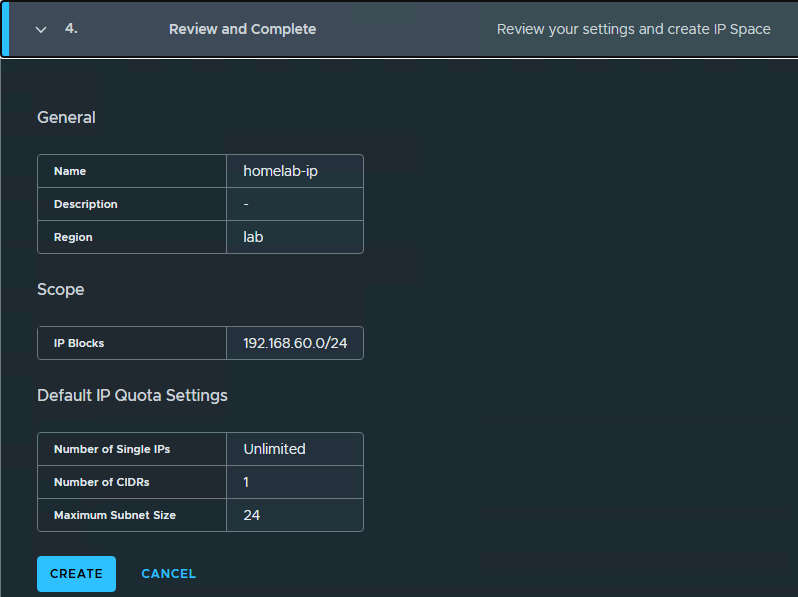
Review the information and click Create

Once completed Status will show as Normal. Click Infrastructure Overview in the upper left
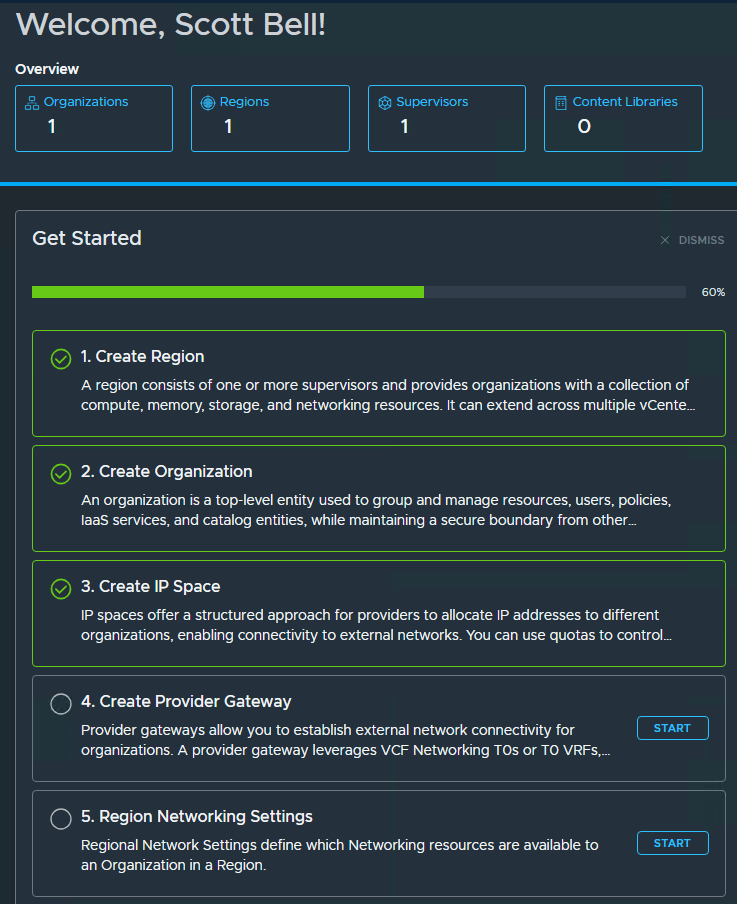
Select Start for Create Provider Gateway
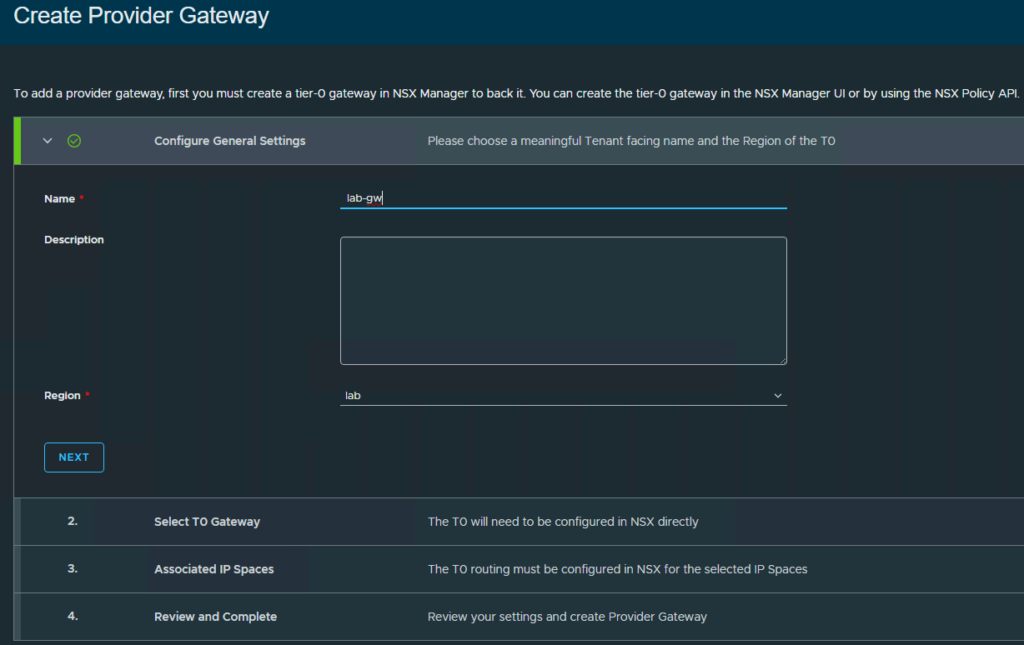
So as noted, you will need to go over to NSX to create a T0 Gateway for this
Login to NSX
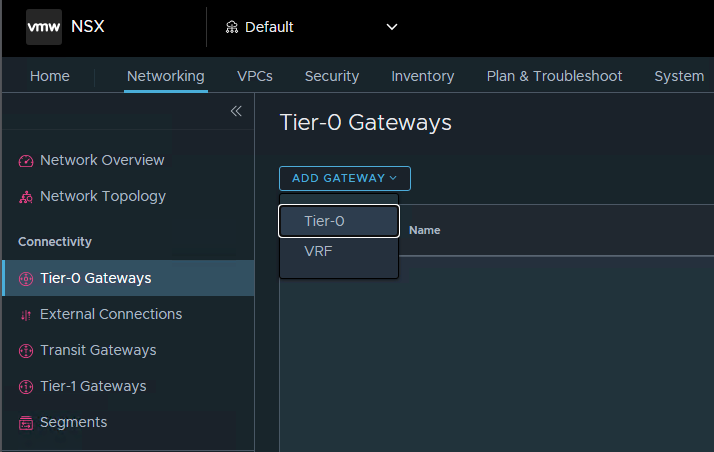
Select the Networking Tab, the Tier-0 Gateways on the left pane, then click Add Gateway and finally Tier-0
Add a name, I changed HA mode to Active Standby, and select your Edge cluster and click Save
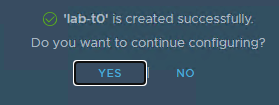
You will be asked if you want to continue configuring the gateway. Answer as appropriate for your configuration. For now I will select No.
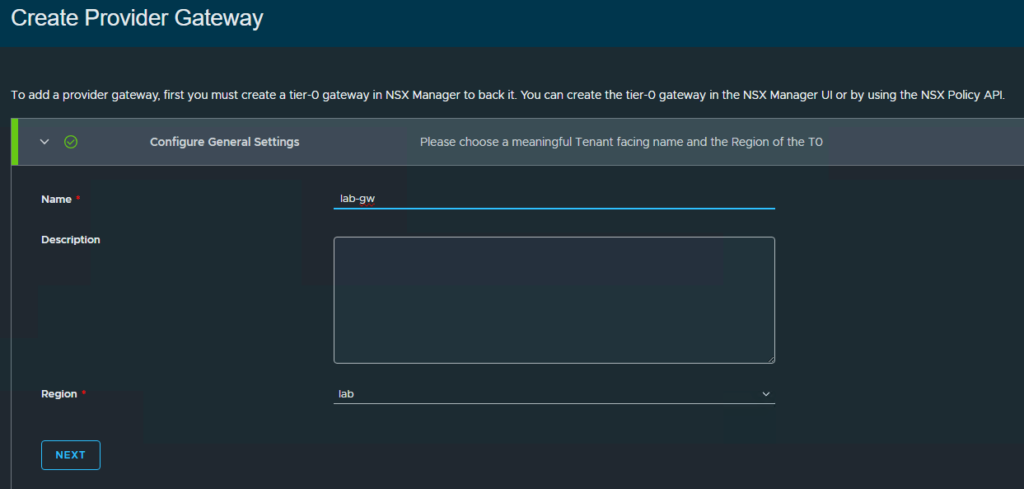
Back over on the Automation page, make sure to create a Provider Gateway name and select the Region, select Next
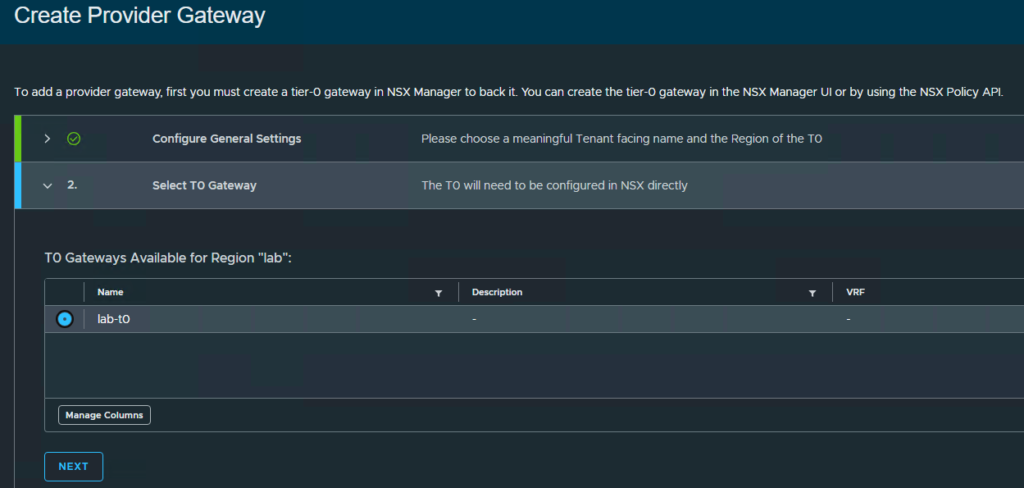
Choose your T0 Gateway and click Next
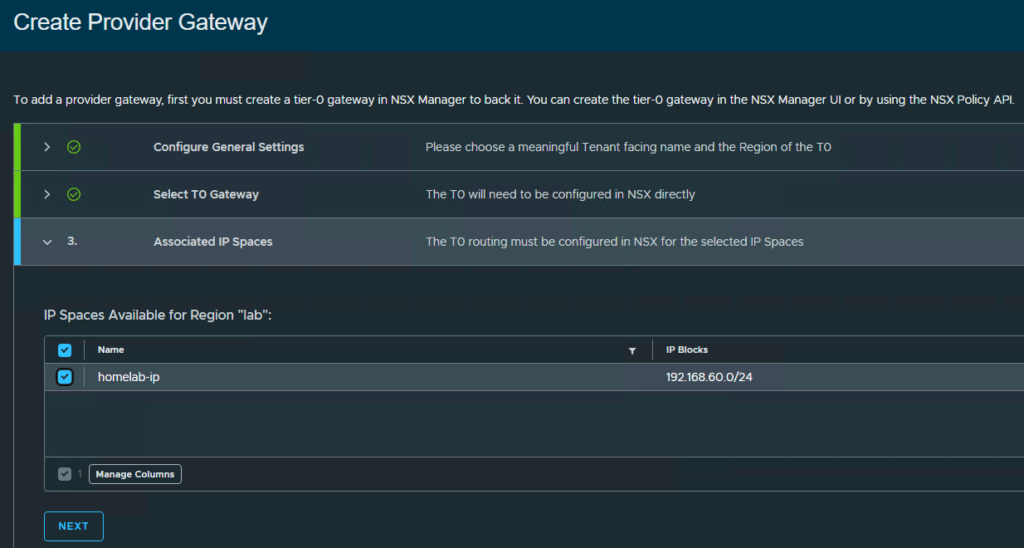
Choose your IP Space and click Next
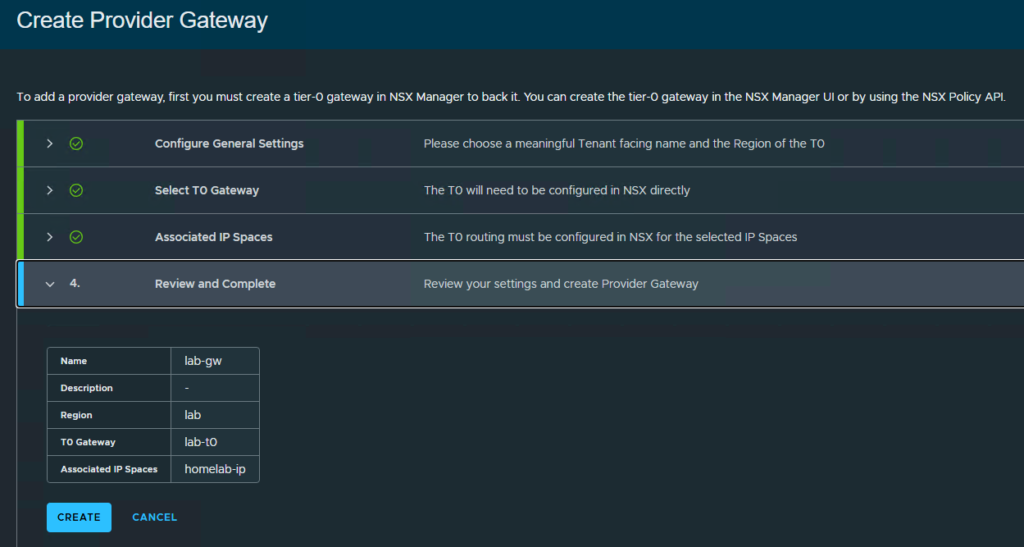
Verify your information and select Create

Once it’s finished being created you should see a status of Normal. Click Infrastructure Overview in the upper left
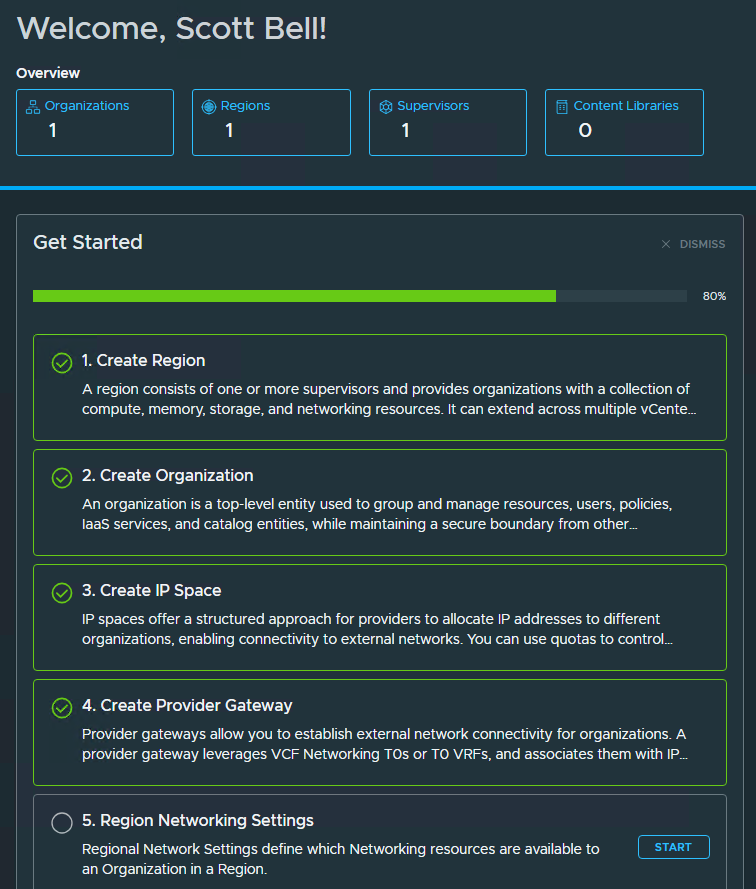
Select Start for Region Network Settings
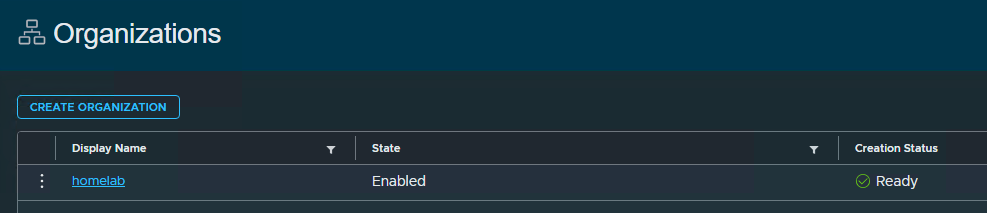
Click the name of your Organization
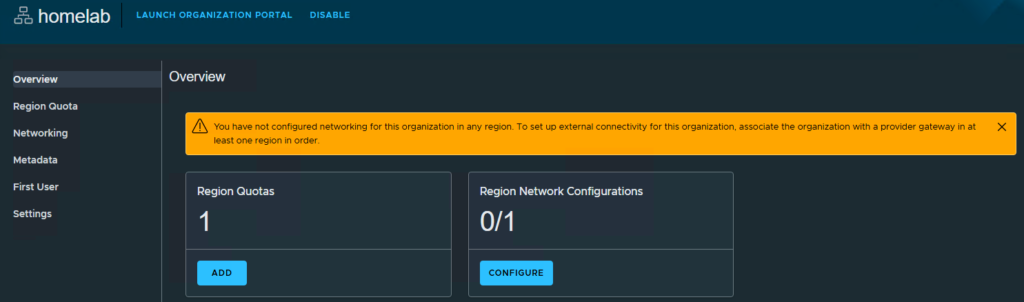
You will get a yellow banner informing you that networking has not been setup for the Org. Select Configure for Region Network Configurations
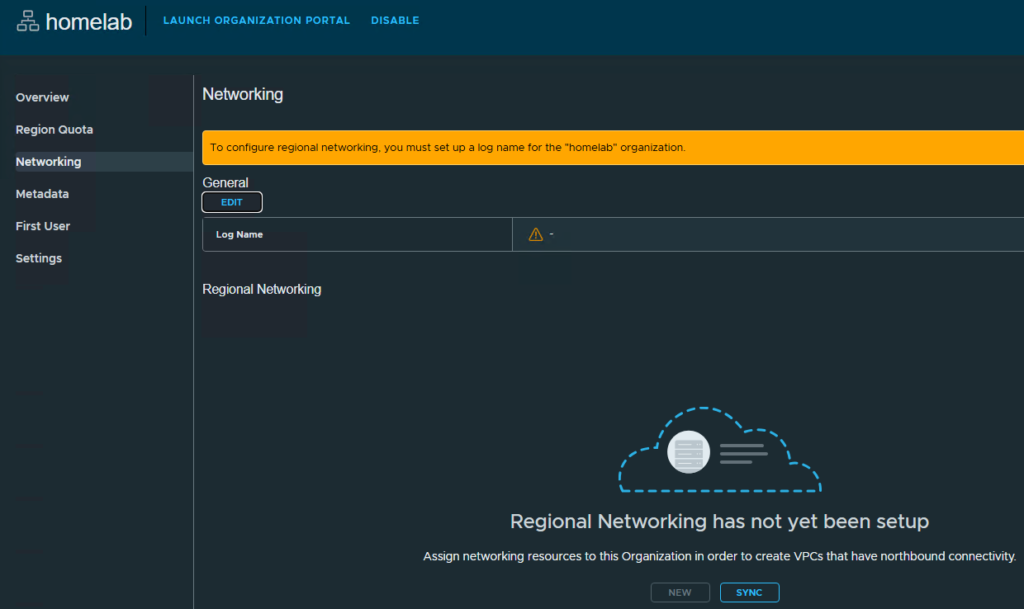
You will get another yellow banner that you need to add a log name to then be able to configure networking. Click Edit under General
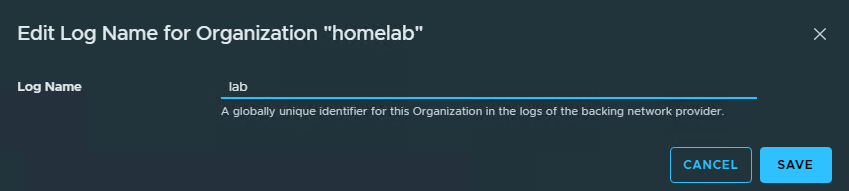
Enter a name for log name that will be the prefix for log entries tied to this and click Save
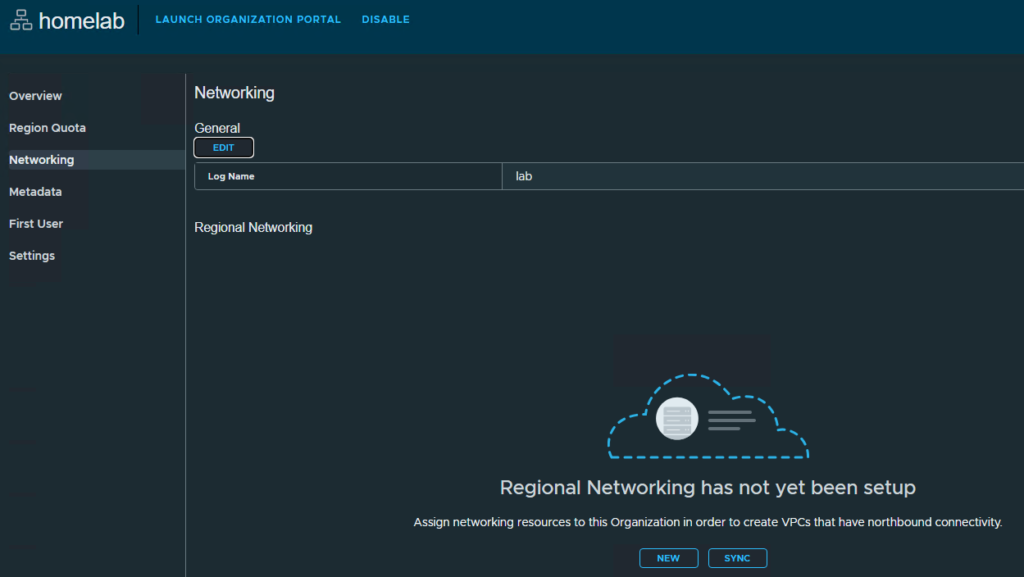
Click New in the center pane
Select the Region and click Next
Select the Gateway and click Next
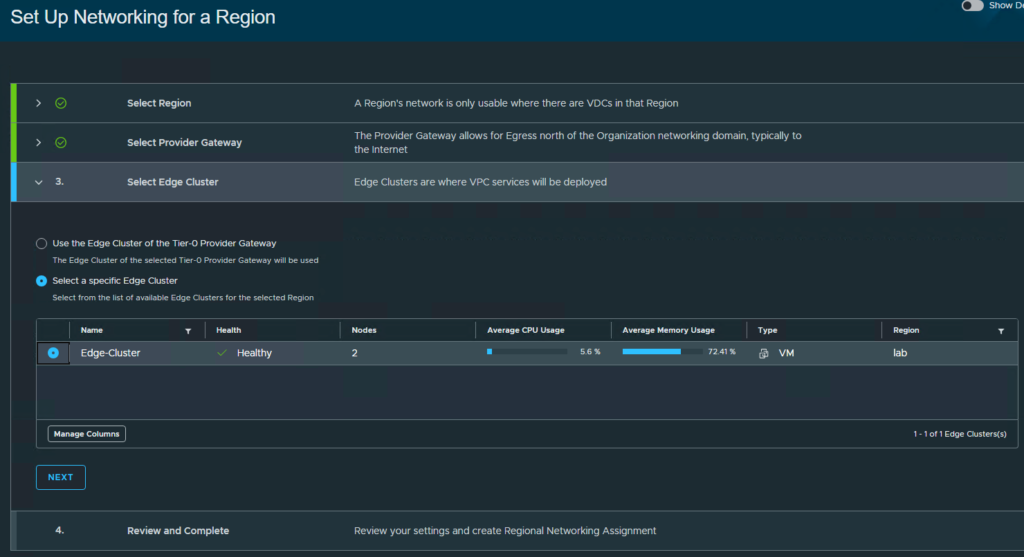
You can either leave it set to use the default Edge cluster that the Tier-0 Gateway is set to use, or you can select a specific cluster. Click Next
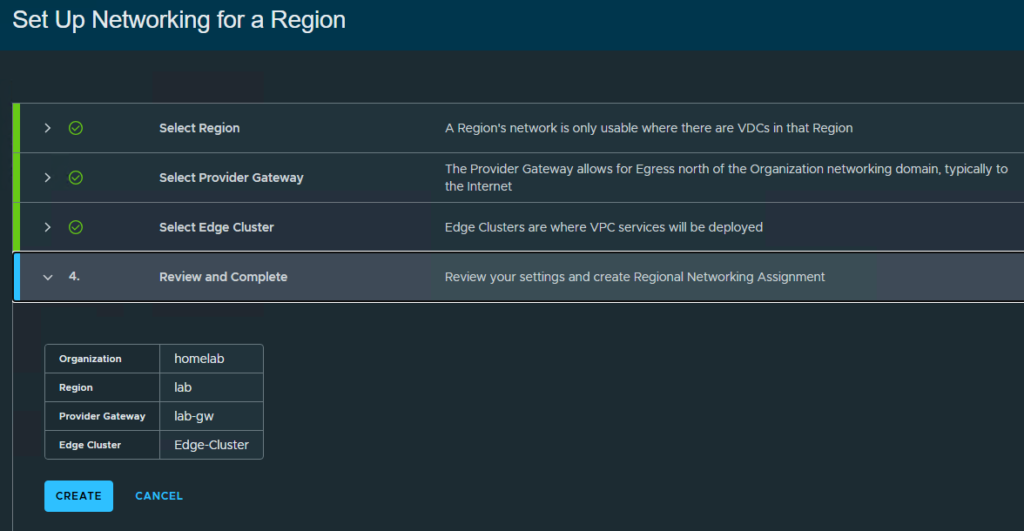
Verify the information and click Create
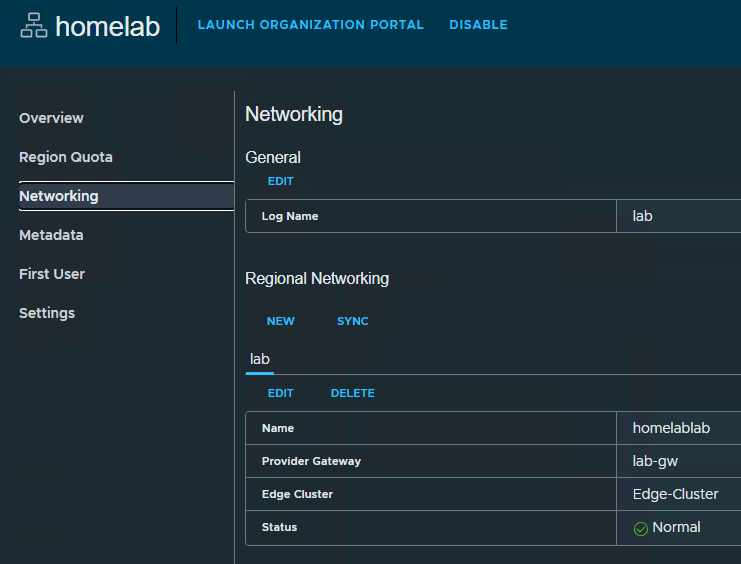
Once completed you should see a status of normal
Note: You may need to go to another section such as Overview and back for the status to update from Busy
Automation has now been set up and is ready to use. Next will be linking Orchestrator to the new Organization
Home Lab, Homelab, VCF, VCF Automation, VCFA 9, VMware