Greetings, today we will be installing ESXi 8 to a virtual machine. The steps are the same for the actual installation to hardware.
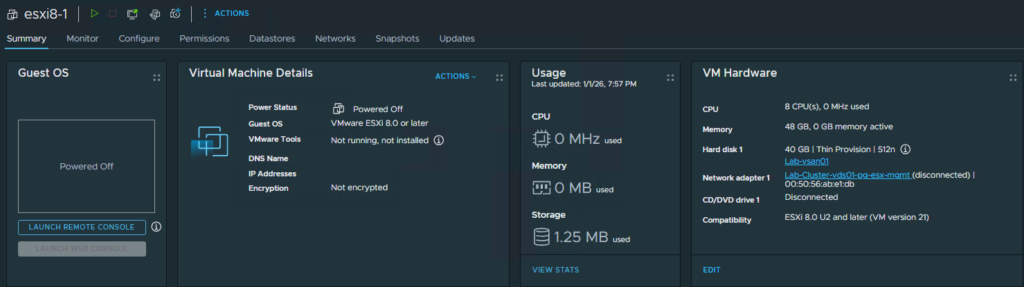
So I have made a Virtual Machine with 8 vCPU’s, 48GB RAM, and a 40GB Hard Drive
I have also attached the ESXi 8.03 ISO to the VM for this install. There are newer versions, but this works for one of the next articles for updating ESXi using vCenter 8’s Lifecycle Manager

Once the VM has been powered on with the ISO attached, it will automatically boot off the ISO.
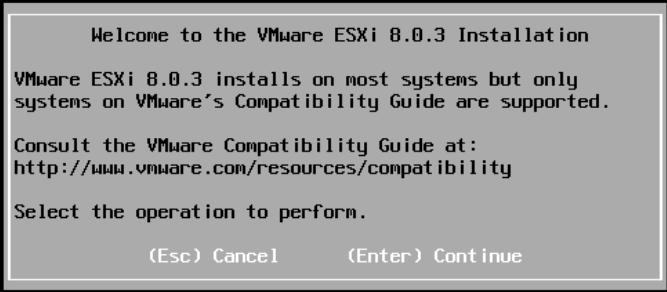
Once the ISO has fully loaded, you will get this screen. Hit Enter to Continue
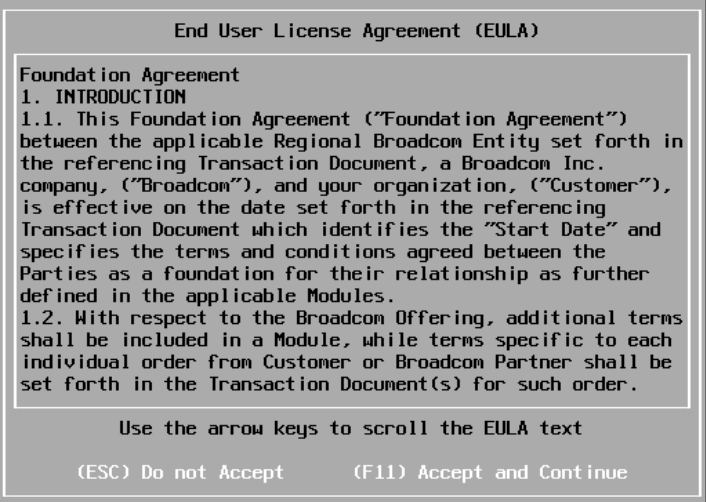
Review the EULA and if you accept, hit F11 to continue

The installer will then scan for Hard Drives to provide a list of eligible drives for installation
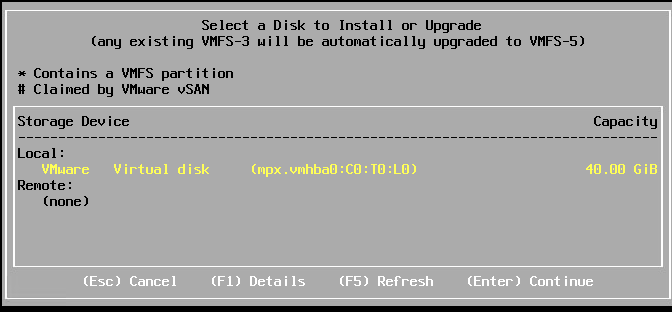
In this case I will only have one option, you may have more. I will be hitting Enter to continue
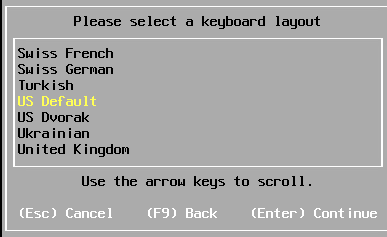
Next, select your preferred keyboard layout and hit Enter to continue
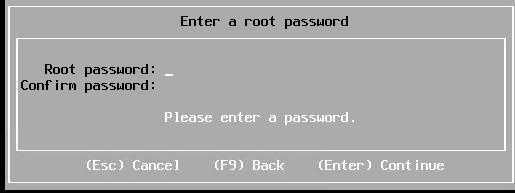
Enter your desired password, then again to make sure its consistent. Hit Enter to continue once done
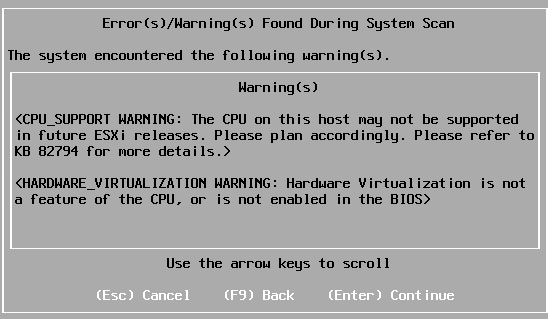
Depending on the age of your CPU, you may get this message that your CPU wont be supported much longer.
I’m using a Skylake era CPU so while its supported for ESXi8/vSphere 8/VCF 5.x, it is NOT supported for VCF/VVF 9.
Hit enter to continue
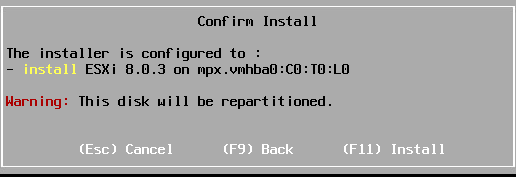
It will ask if you’re sure you want to use the selected drive as it will be repartitioned and all existing data will be wiped.
If your ok with this, hit F11 to start the install
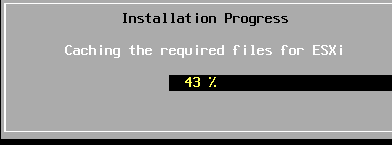
The installer will start caching files for the installation
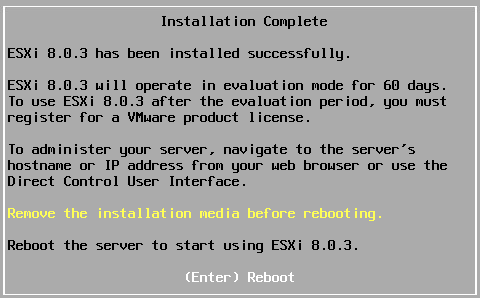
After the installation has completed you will be asked to remove the ISO\disk\whatever was used for the installation.
Once removed, hit Enter to reboot
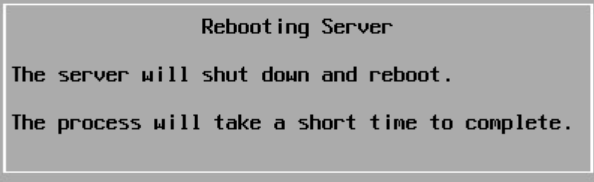
When it starts rebooting you will get this message
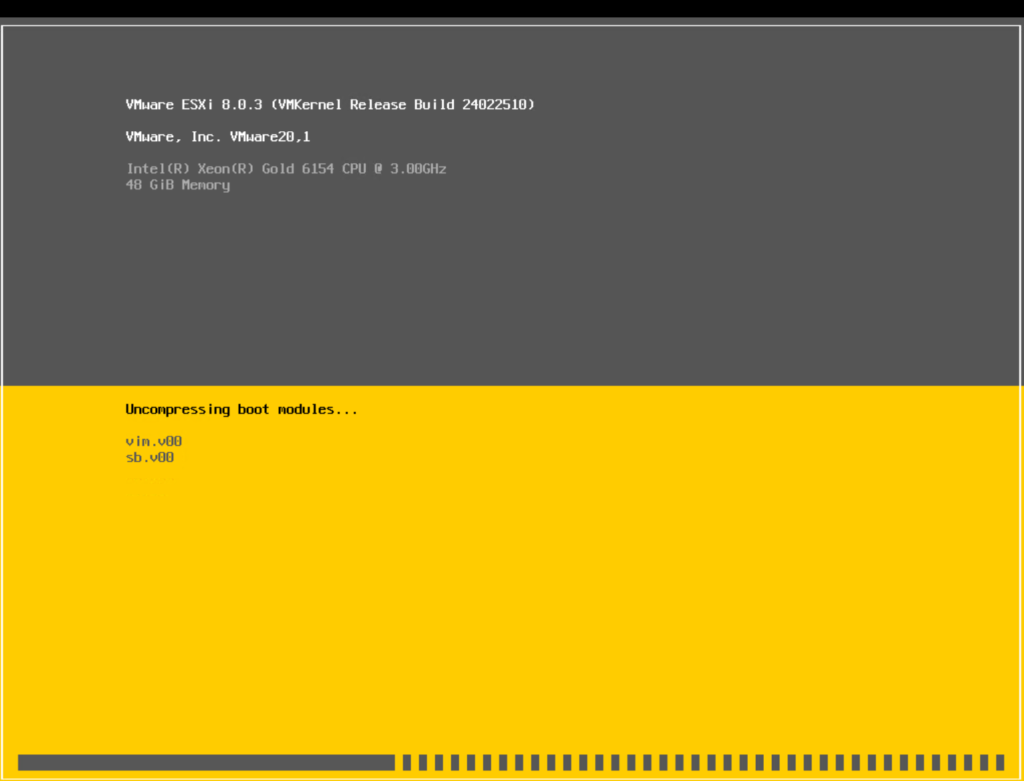
As the system starts up, you will see this screen again, but for the actual OS and not installation this time
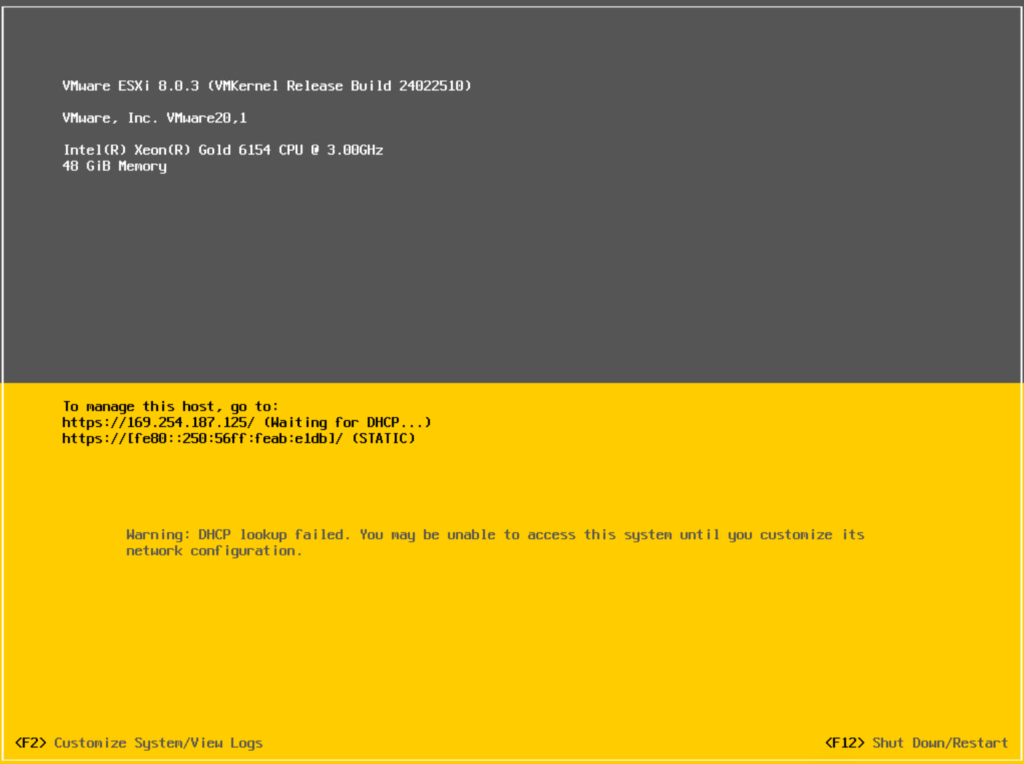
Once startup has completed, you will get this view to manage\configure or shut down\restart the system.
You now have your ESXi 8 installed. The next article will cover configuration of the host to get it ready for use.
Have a good one.
ESXi 8, Home Lab, Homelab, VMware, vSphere 8