Greetings, today we will be deploying the VCF Installer
So to start, the VCF Installer OVA will need to be downloaded, this will require a Broadcom account and the appropriate license entitlement.
Link to the download:

At the time of this article being written, it would be this download OVA for 9.0.1.0.24962180
Deploy OVA
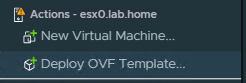
Right click the host and select Deploy OVF Template
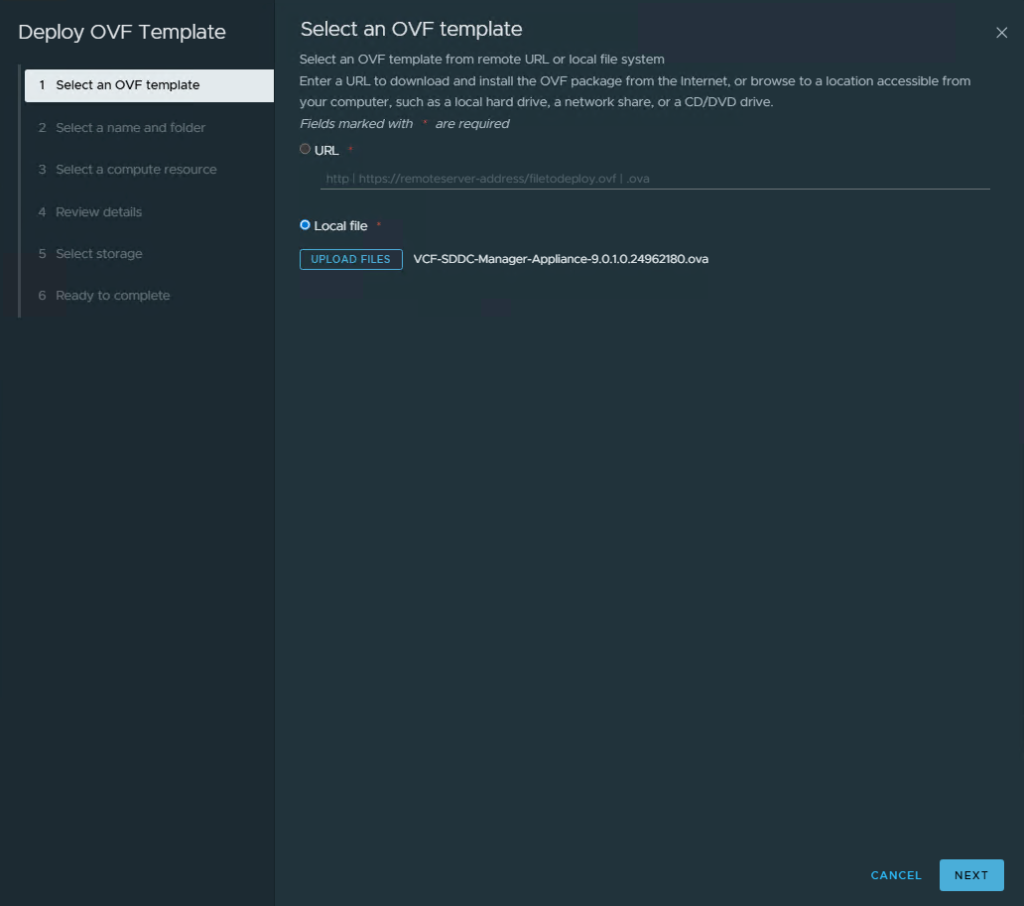
Select Local File, then Upload Files
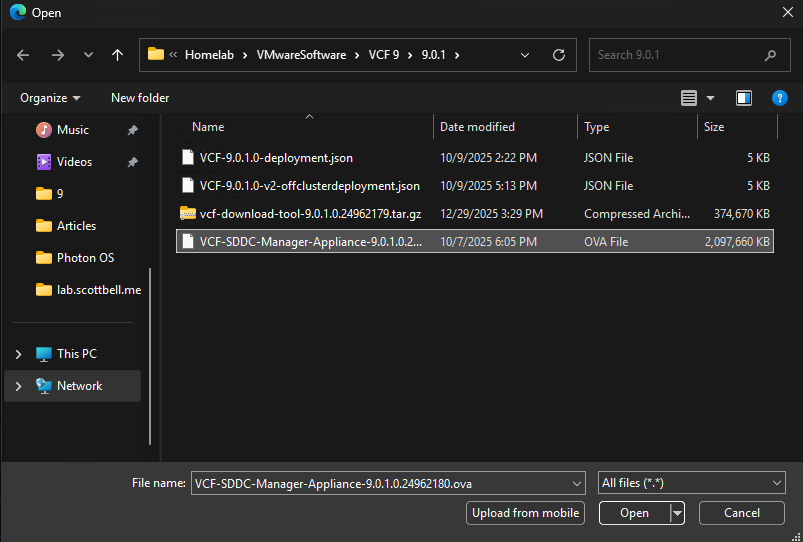
Navigate to the file and select Open
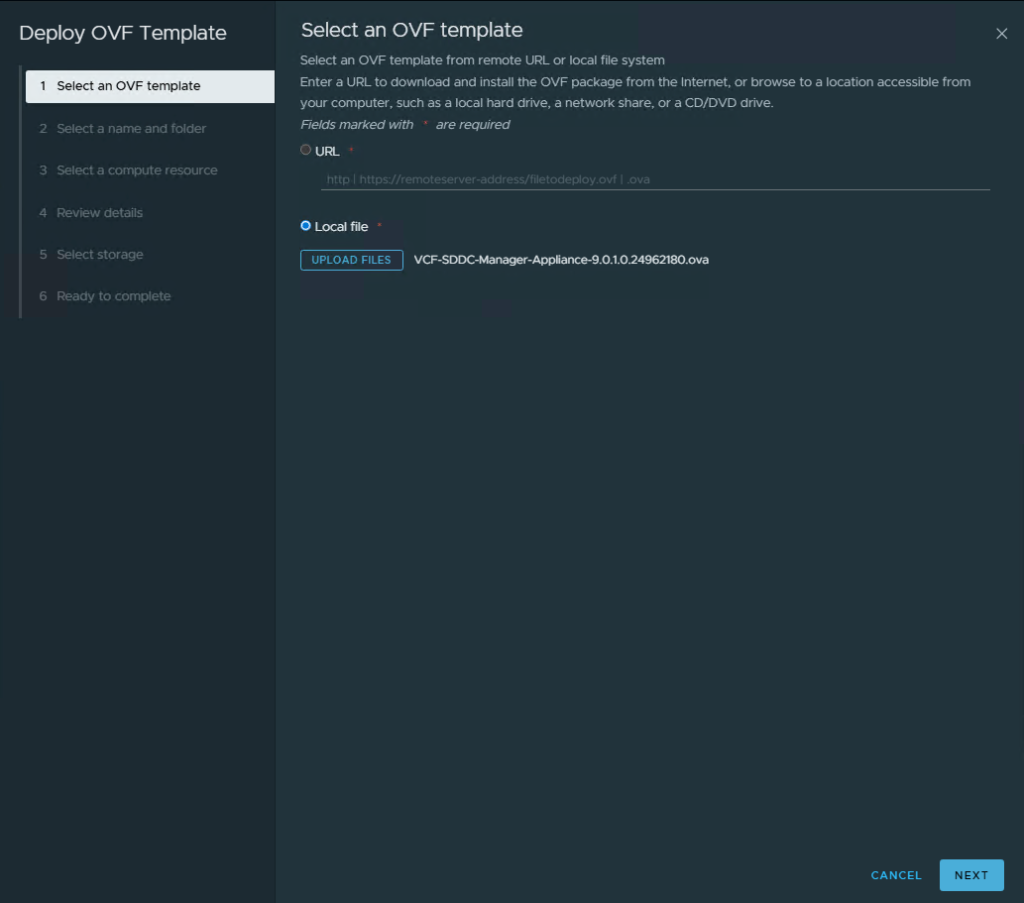
Select Next
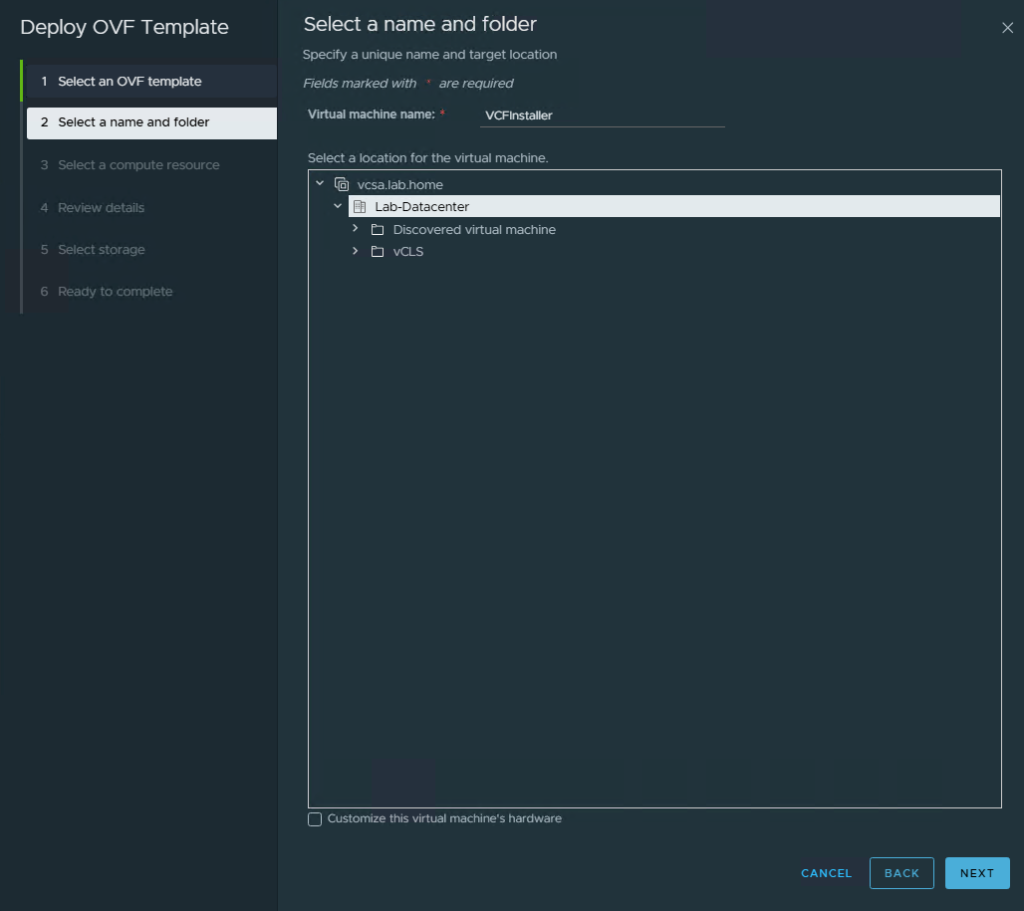
Enter a name in the Virtual machine name line and select Next
Note: You will need to make a host record (A and PTR) for this hostname, please verify all records are only lowercase.
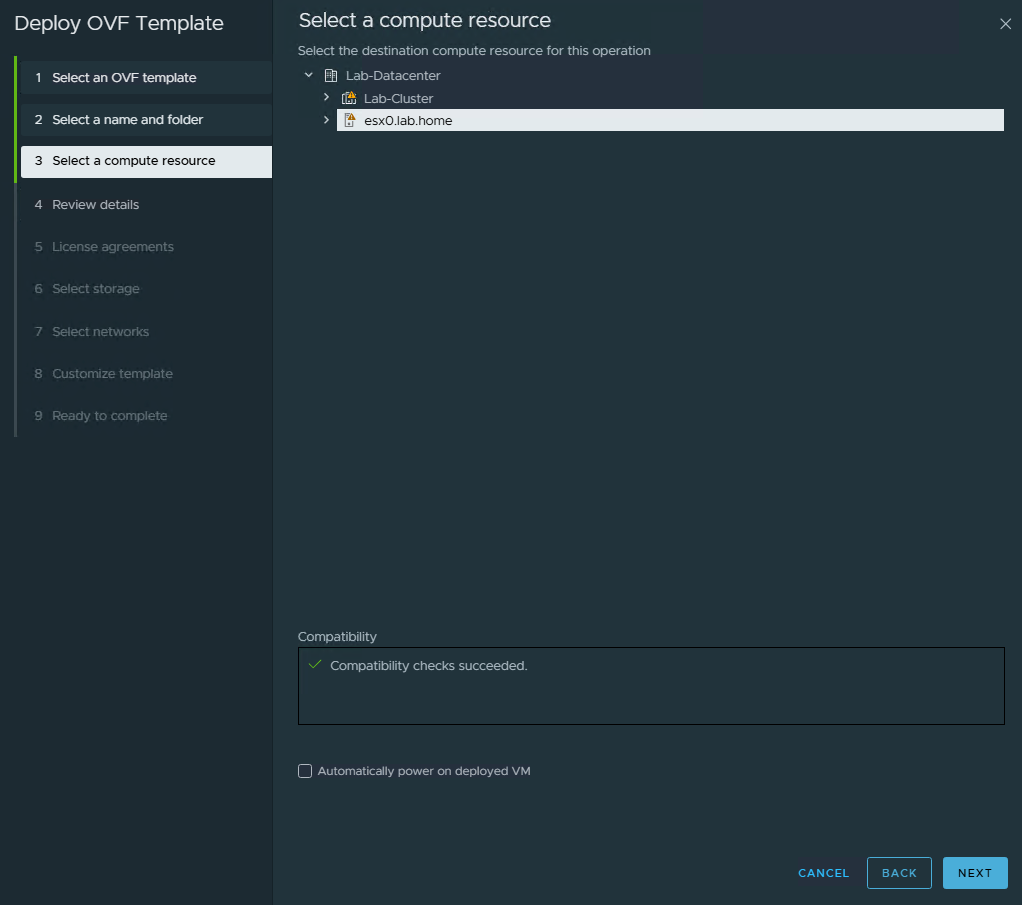
Select the host you want to deploy to and click Next
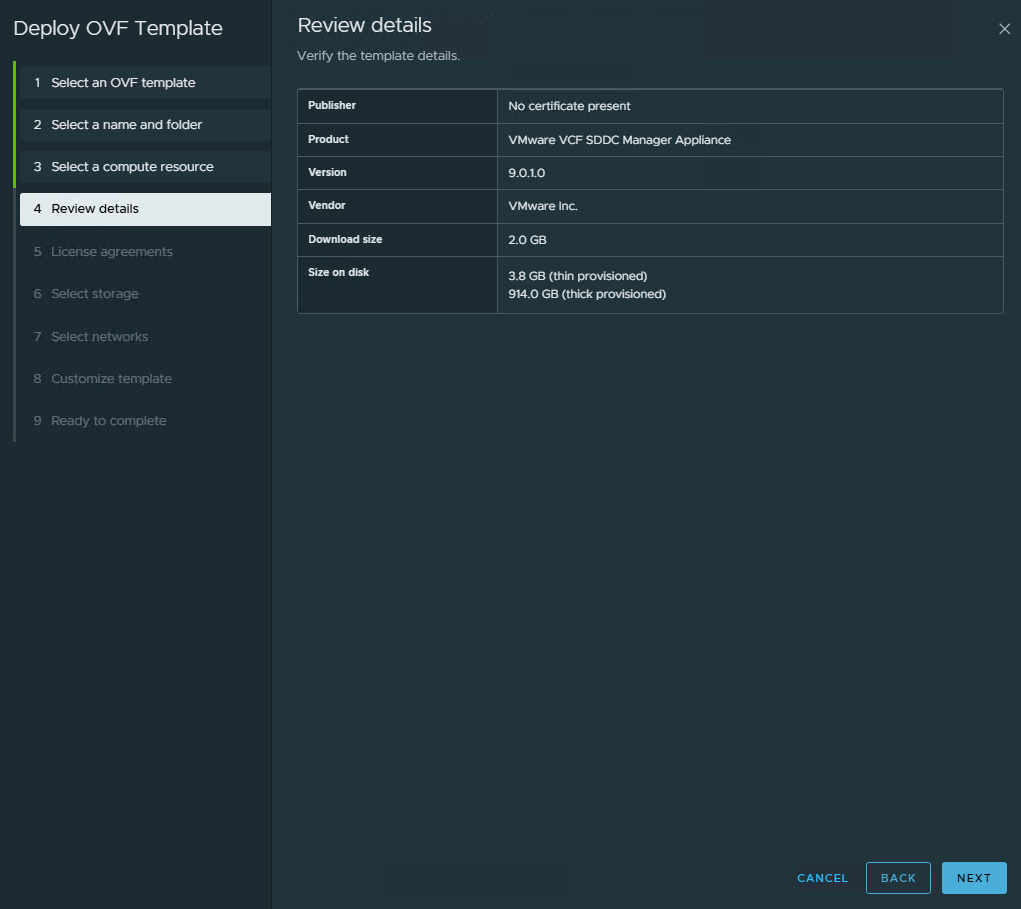
Verify the settings and select Next
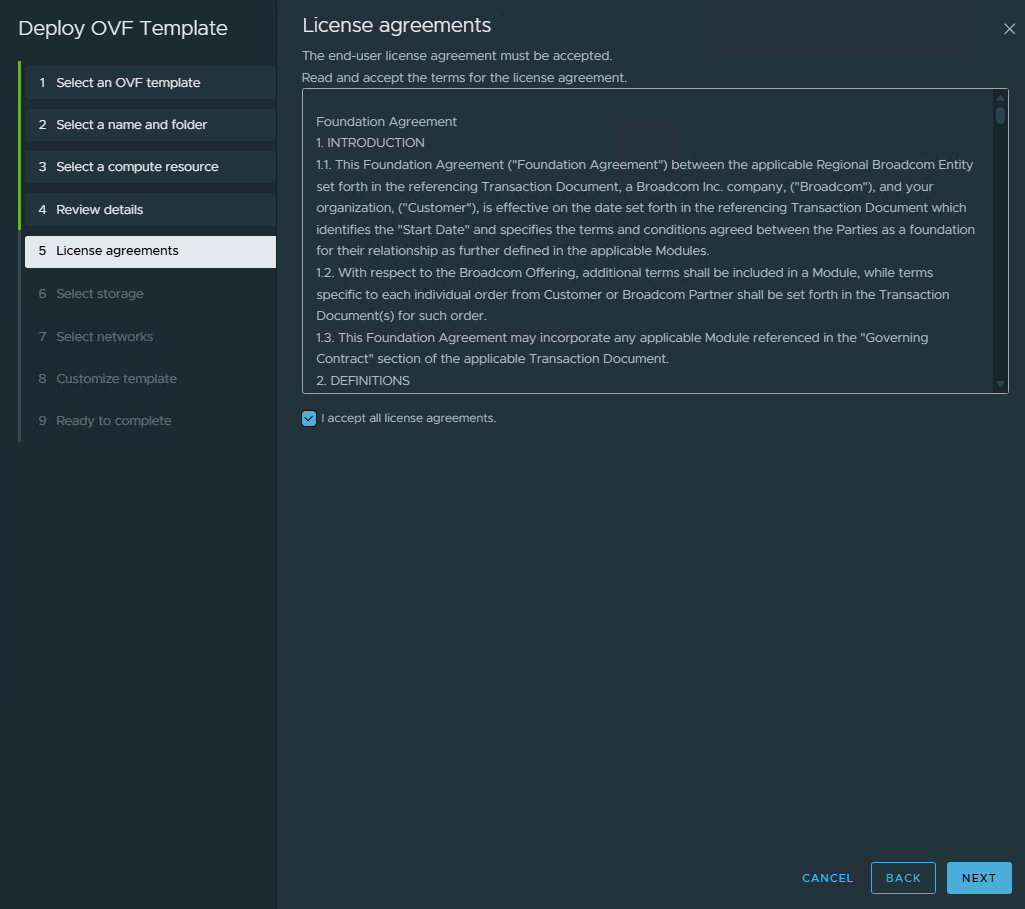
Review the license agreement, and if you accept the agreements, check the accept block and select Next
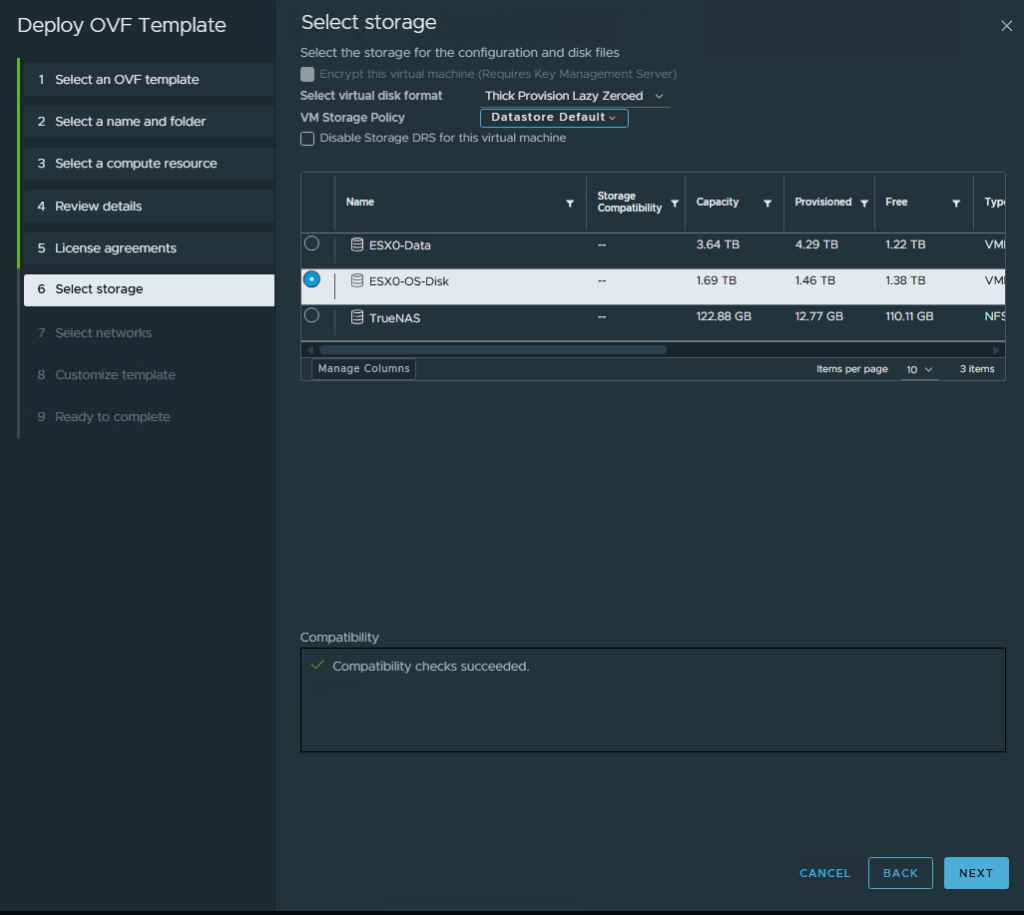
Select the intended storage. Normally I would recommend against using the OS Disk, but this is an NVME drive so it isn’t at risk of saturation.
Select Next
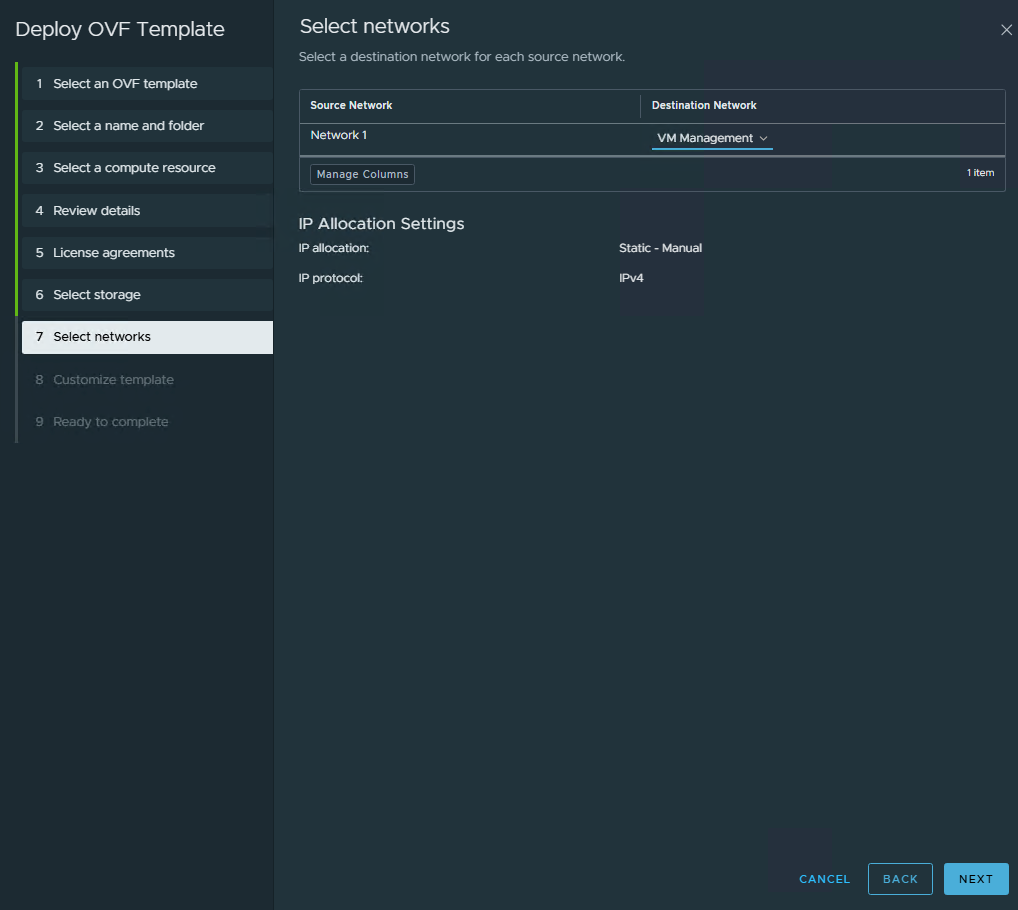
Select the Network and click Next
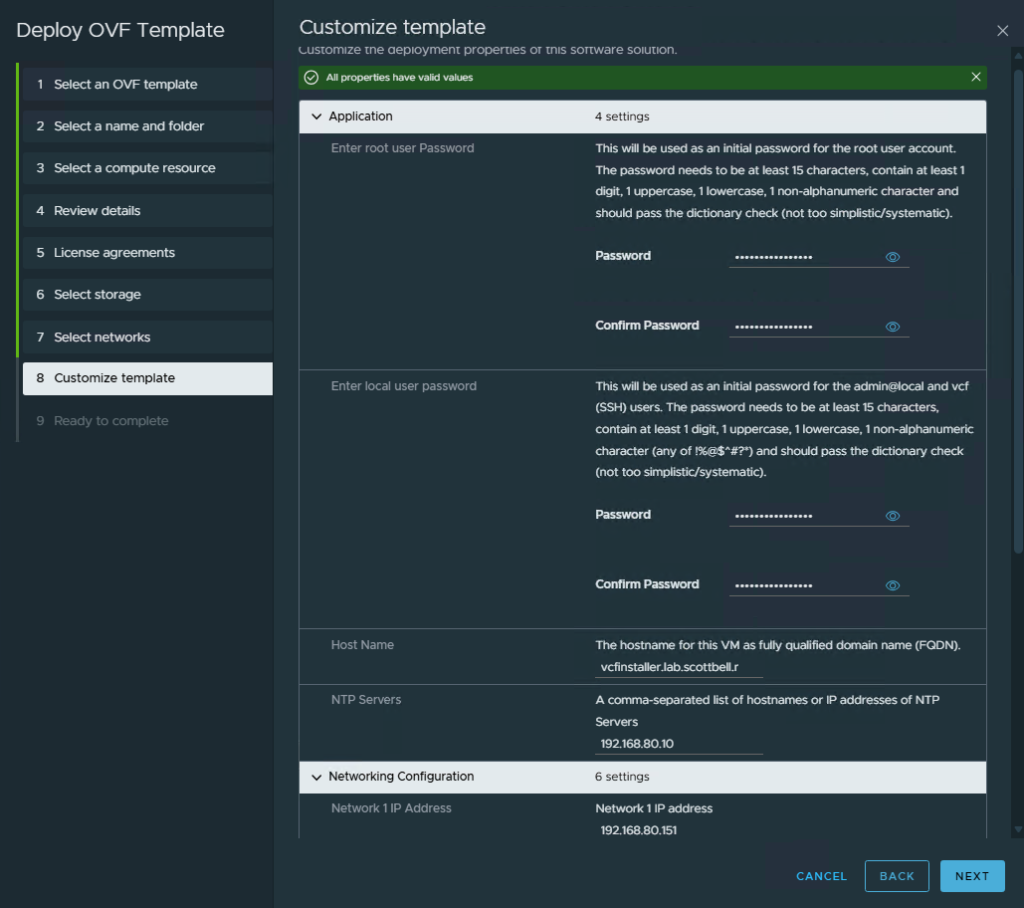
Go through the various line and put in the needed information. Select Next once done.
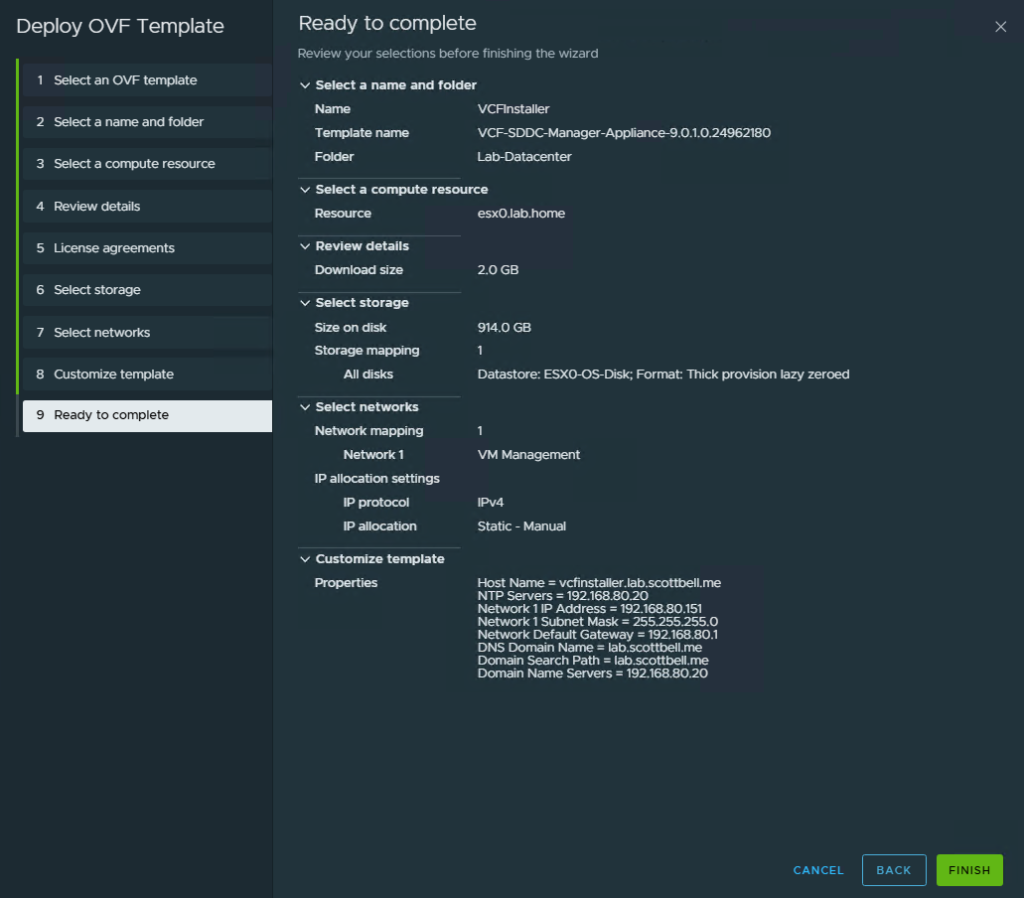
Review the settings and if correct, select Finish. If not, go back and adjust anything that isn’t correct.
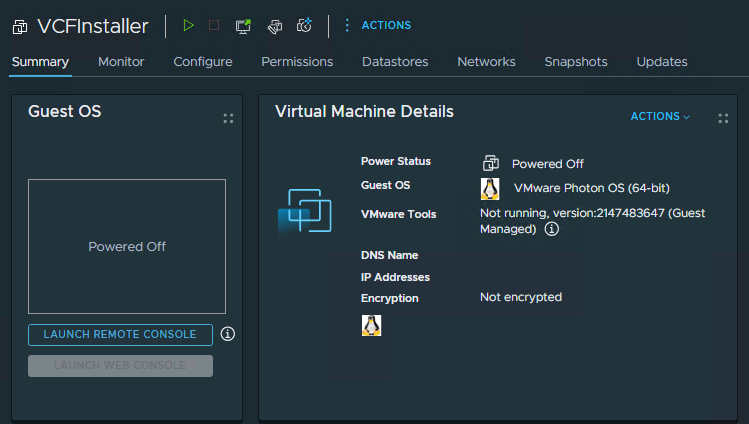
Power on the VM using the Green Triangle button
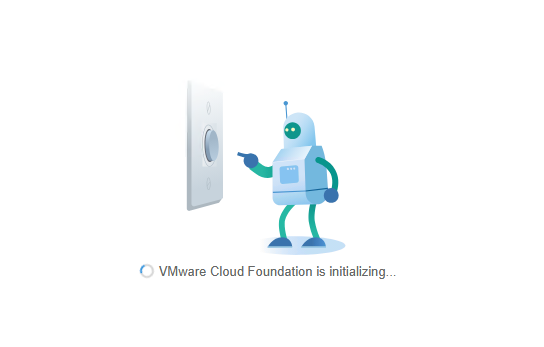
As the system is powering up, if you go to the website (https://fqdn) you will get this page
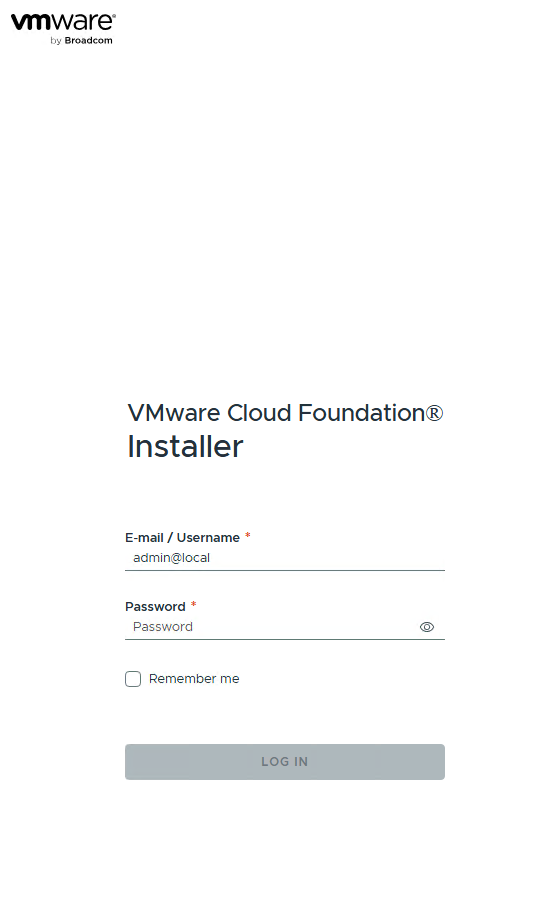
Once the system has finished starting up, you will get this login screen.
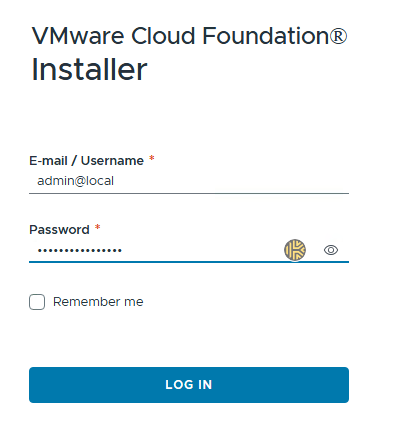
Login using admin@local and the password you set
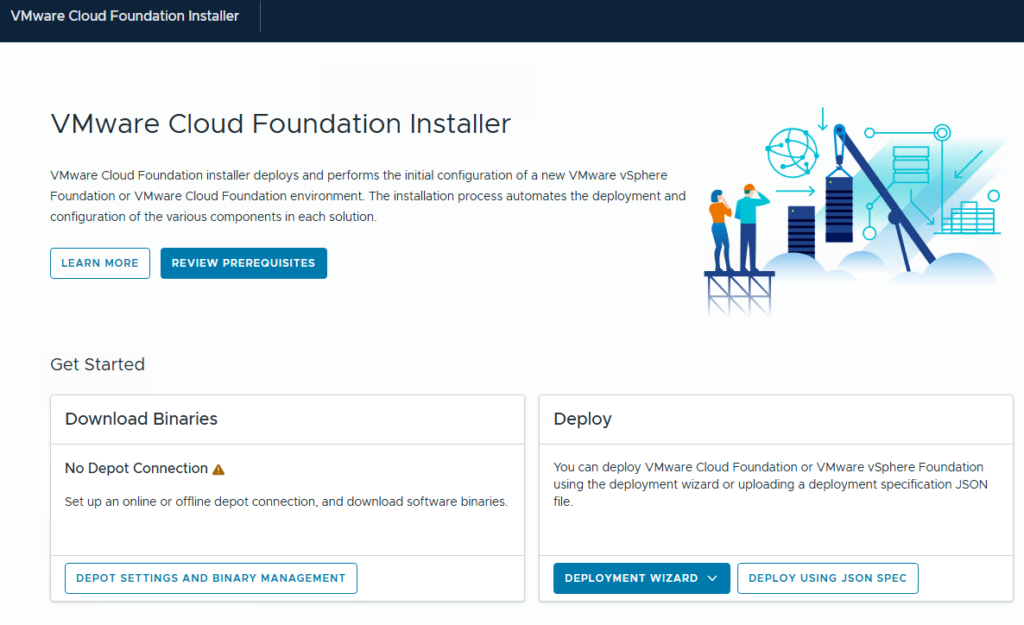
Once you have logged in, you will get the following page. The next article will cover the Download binaries to connect to your offline depot.
Have a good one.
Home Lab, Homelab, VCF, VCF Offline Depot, VMware