Create Certificate Template for VMware Certificate Authority
December 13, 2025 | ADCS, Certificate Services, Certificate Template, Homelab, Microsoft, VCF, VMware | No Comments
Greetings, this time we are going to be creating a Certificate Template for VMware Certificate Authority (VMCA). This would allow you to use VMCA to issue certificates for your VMware environment.
This is based on the following article:
Creating a Microsoft Certificate Authority Template for SSL certificate creation in vSphere
Open Certificate Authority
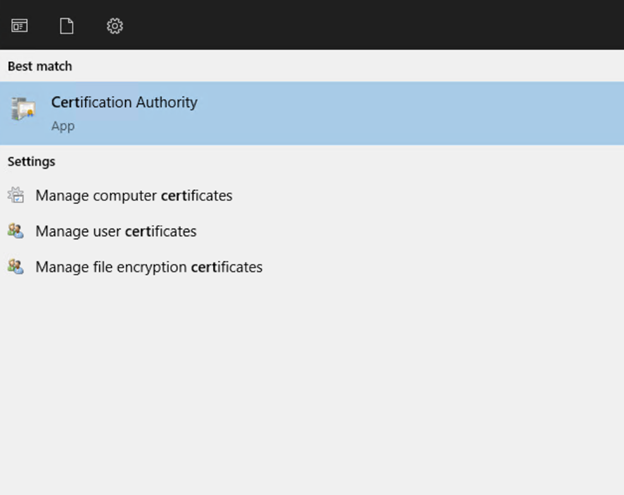
Select Certificate Authority
Create Certificate Template
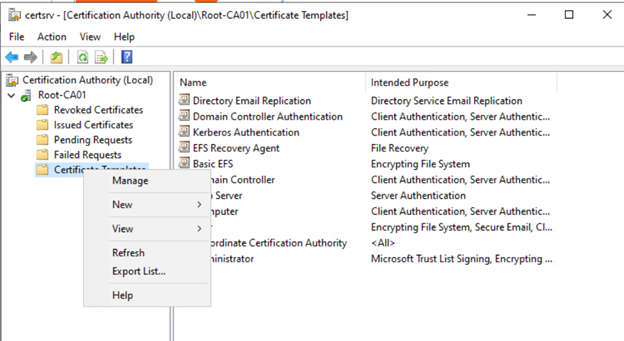
Expand Root-CA01, then right-click Certificate Templates and select Manage
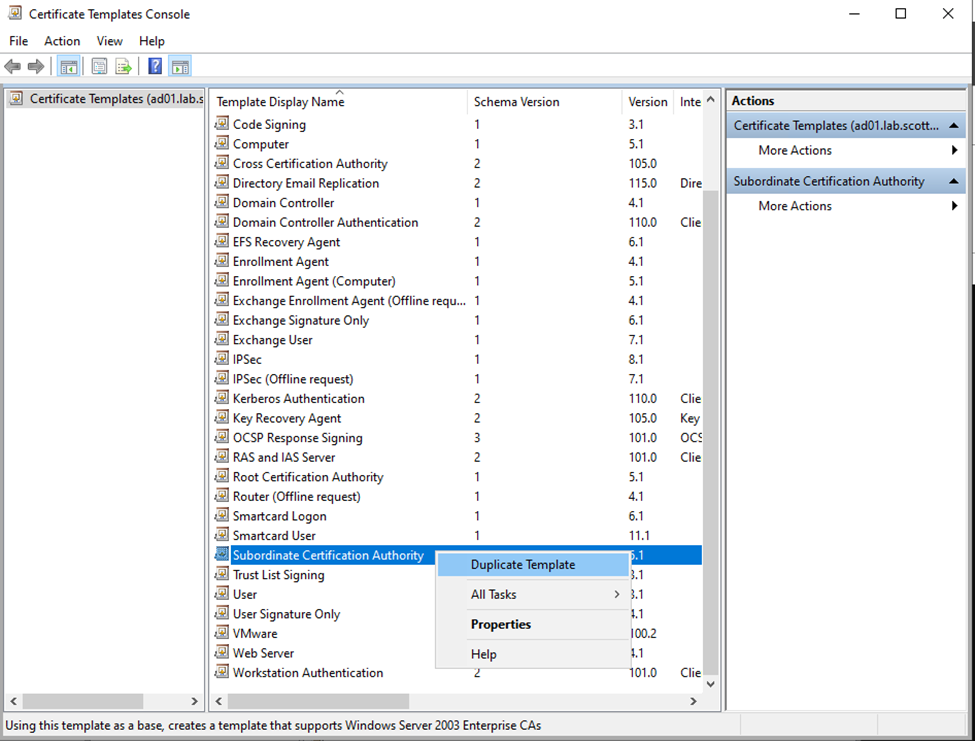
Find and right-click the Subordinate Certification Authority, then select Duplicate Template
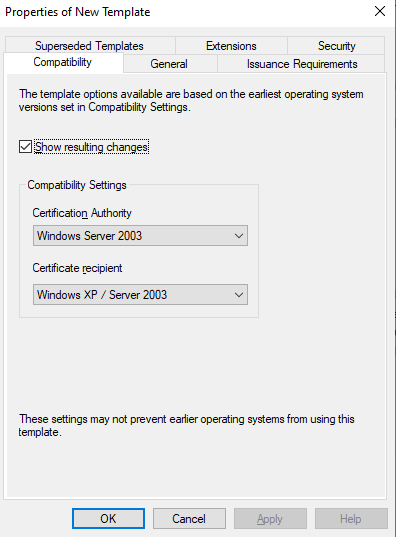
Change Certification Authority to Windows Server 2012 and Certificate Recipient to Windows 7/Server 2008 R2

Go to the General Tab and enter your preferred name for the Template. I would recommend a name that indicates its purpose.
Also select Publish certificate in Active Directory
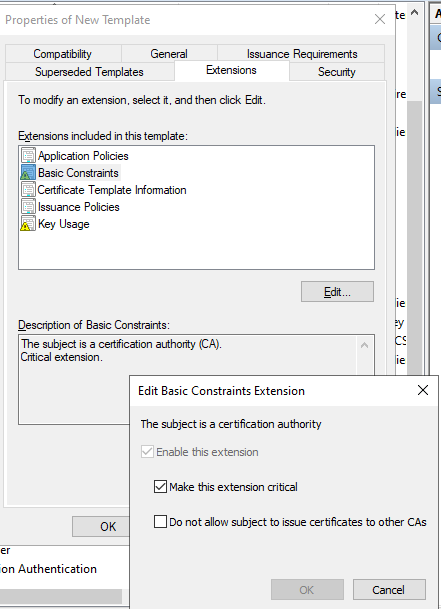
Go to the Extensions tab, select Basic Constraints, click Edit and make sure that Make this extension critical is enabled. Select OK if changes were made, choose cancel if not.
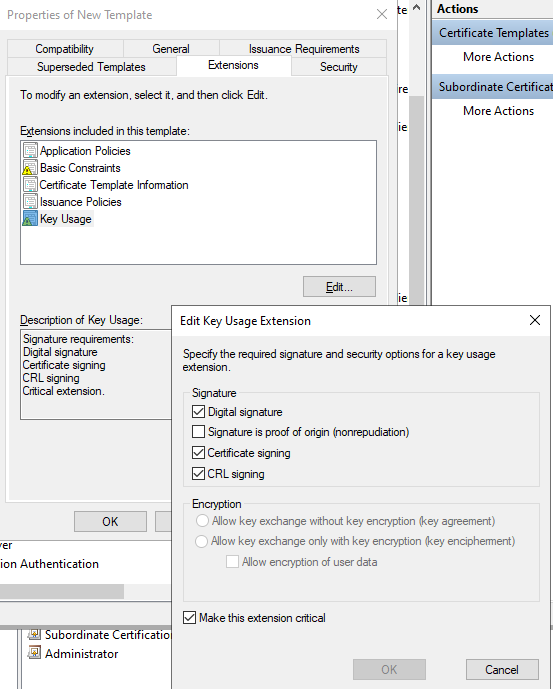
Go down to Key Usage, click Edit and verify that Digital signature, Certificate signing, and CRL signing are all enabled. Also check to make sure Make this extension critical is enabled as well.
Click OK if changes were made, cancel if not.
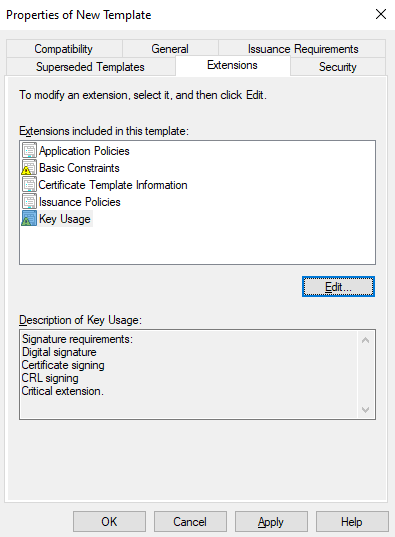
Select OK
Authorize Template to be issued

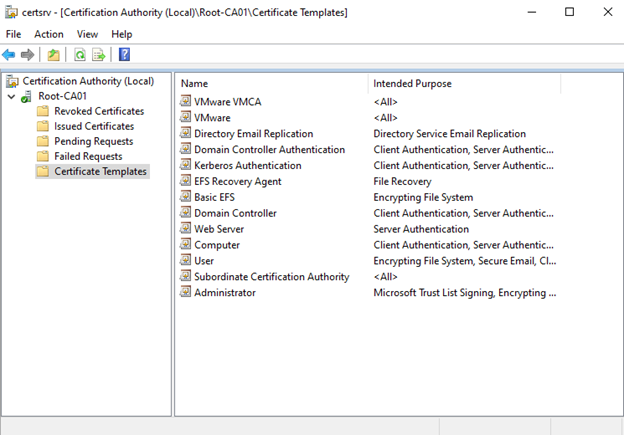
Go back to Certificate Management, right-click Certificate Templates, hover over New, and Select Certificate Template to Issue
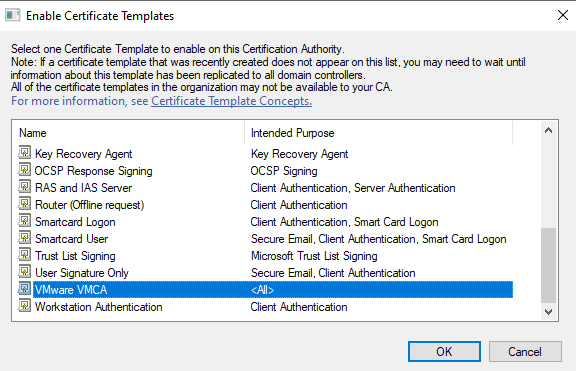
Scroll down to VMware VMCA (or whatever it may have been named) and select OK
Note: This is a subordinate Certificate Authority Level CA. Guard usage of this template very careful as misuse\unintended issue can cause significate issues if control is lost of it.
Now you have your certificate template to issue certs from VMware Certificate Authority. Have a good one.
ADCS, Certificate Services, Certificate Template, Home Lab, Homelab, Microsoft, VCF, VMCA, VMware, VMware Certificate Authority, VMware Cloud Foundation, Windows, WIndows Server